App Lock APK: 4 Safer Built-In Ways to Lock Apps on Android
People search for an app lock APK to put a PIN or fingerprint on WhatsApp, Gallery or other private apps. Before you install a third-party locker, check your phone: Samsung, Xiaomi, OnePlus, OPPO, Realme and Vivo phones include their own app lock, and Android 15 adds Private Space for hiding apps completely. Built-in tools are usually safer than an unknown app lock APK because they do not need risky permissions.
This guide shows the built-in options brand by brand, explains Private Space and app pinning, and lists the warning signs of unsafe locker apps. We do not host APK files; see our safe APK install guide if you install anything from outside Google Play.
Built-in app lock by phone brand
| Brand | Feature | Where to find it |
|---|---|---|
| Samsung | Secure Folder | Settings → Security and privacy → More security settings → Secure Folder |
| Xiaomi, Redmi, POCO | App lock | Settings → Apps → App lock |
| Google Pixel (Android 15+) | Private Space | Settings → Security & privacy → Private Space |
| OnePlus, OPPO, Realme, Vivo | App lock / App encryption | Search Settings for “App lock” or check Privacy / Security & privacy |
| Any Android phone | App pinning | Settings → Security (search “app pinning”) |
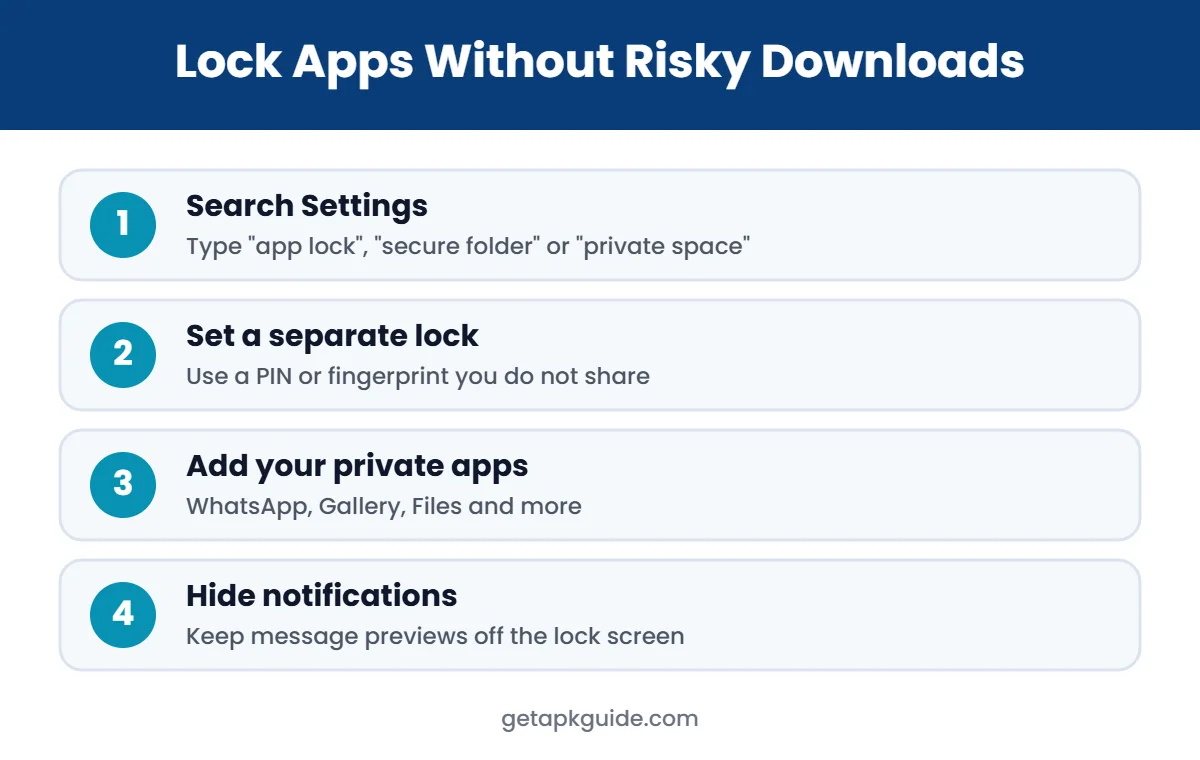
Menu names change between software versions. The fastest way is to open Settings and search for “app lock”, “secure folder” or “private space”.
Option 1: Android 15 Private Space
Private Space is a separate, locked area for apps you want to keep hidden. When it is locked, its apps disappear from the app list and their notifications are hidden.
- Open Settings → Security & privacy → Private Space and confirm your screen lock.
- Choose whether to use a separate Google account (recommended) and set a separate lock or reuse your screen lock.
- Open the app drawer, scroll to the bottom and unlock the Private section.
- Tap Install apps to add apps from the Play Store into Private Space.
You can also choose to hide Private Space completely; then you reach it by searching for “private space”. If you set a separate lock and forget it, you may not be able to recover the apps inside, so keep a note of it somewhere safe.
Option 2: Samsung Secure Folder
Secure Folder uses Samsung Knox to create a separate, encrypted area with its own copies of apps and files.
- Go to Settings → Security and privacy → More security settings → Secure Folder.
- Sign in with your Samsung account if asked and choose a PIN, pattern, password or fingerprint.
- Open Secure Folder and tap Add apps to copy apps inside.
- Move private photos or files into it from Gallery or My Files.
Apps inside Secure Folder are separate copies, so you sign in to them again. You can hide the Secure Folder icon from the Apps screen.
Option 3: Xiaomi, Redmi and POCO App lock
- Open Settings → Apps → App lock.
- Create a password or pattern and turn on fingerprint or face unlock if offered.
- Select the apps you want to lock.
Link a Xiaomi account when prompted. On some models, forgetting the app lock password without a linked account can mean a factory reset.
Option 4: App pinning for lending your phone
App pinning keeps one app on screen so someone you hand the phone to cannot open your other apps. It does not password-protect apps; it simply locks the screen to one app until you unpin it with your PIN or fingerprint. Turn it on in Settings → Security (search for “app pinning”).
Third-party app lock APK: the risks
Many app lock APK files on download sites promise “hide apps”, “fake crash screens” or “intruder selfies”. The problem is how they work:
- Accessibility access: most third-party app lock APK tools ask for accessibility permission to watch which app you open. That permission can also read the screen and tap buttons.
- Usage access and overlay: they need to see app usage and draw over other apps, which can be misused for ads or phishing screens.
- Easy to bypass: some app lock APK tools can be stopped by force-stopping or uninstalling them from Settings.
- Modded “premium” files: a tampered app lock APK with accessibility access is one of the most dangerous combinations. Read why mod APKs are risky.
If you choose a third-party app lock APK, install it only from Google Play, check the developer’s reputation, recent reviews and privacy policy, and grant only the permissions it clearly needs.
How to check an app lock APK before installing
If your phone has no built-in option and you decide to try an app lock APK, run through these checks first:
- Install it from Google Play, not from a “mod” or “pro unlocked” site.
- Check the developer name, the number of downloads and the most recent reviews.
- Read which permissions it asks for. Accessibility, usage access and overlay are typical for lockers, but contacts, SMS or call logs are not.
- Look for a clear privacy policy that explains what data leaves your phone.
- After installing, open Google Play Protect and run a scan.
If an app lock APK shows full-screen ads, asks you to install other apps or keeps asking for extra permissions, uninstall it. A locker should protect your privacy, not trade it for ad revenue.

Extra privacy tips beyond an app lock
- Use a strong screen lock (a 6-digit PIN or longer) and a short auto-lock time.
- Hide notification content on the lock screen in Settings → Notifications.
- Turn on Find My Device so you can lock or erase a lost phone remotely.
- Use Guest mode or a second user when children or friends borrow your phone for a long time.
- Review app permissions every few months and remove access you no longer need.
An app lock is only one layer. Combined with a good screen lock and hidden notifications, it keeps your chats and photos private even if someone picks up your unlocked phone.
Which method should you use?
| Need | Best option |
|---|---|
| Hide apps completely | Private Space (Android 15+) or Samsung Secure Folder |
| Quick fingerprint lock on WhatsApp or Gallery | Your brand’s built-in App lock |
| Lend your phone to someone | App pinning or Guest mode |
| Phone has no built-in option | In-app locks (many chat apps have one) or a trusted Play Store locker |
App lock vs Private Space vs Secure Folder
| Feature | App lock | Private Space | Secure Folder |
|---|---|---|---|
| Hides the app icon | No (usually) | Yes, when locked | Yes, inside the folder |
| Separate copy of the app | No | Yes | Yes |
| Hides notifications | Partly | Yes, when locked | Yes |
| Needs extra permissions | Built-in: no; third-party: yes | No | No |
| Available on | Most brands | Android 15+ (supported phones) | Samsung Galaxy |
In short, a simple app lock is enough to stop casual snooping, while Private Space and Secure Folder are better when you want the app and its data to be invisible to anyone who picks up your phone.
Apps with their own built-in lock
Before installing an app lock APK, check the app itself. Many popular apps already include a lock:
- WhatsApp: Settings → Privacy → App lock (called Fingerprint lock in older versions), plus locked chats for individual conversations.
- Google Photos: the Locked Folder hides selected photos behind your screen lock.
- Banking and payment apps: most ask for a PIN or fingerprint by default.
- Files by Google: Safe folder keeps documents behind a PIN. See our file manager guide.
Common app lock problems
| Problem | Fix |
|---|---|
| App lock option missing | Search Settings for “lock” or “secure”; menus vary by model |
| Forgot app lock password | Use the linked account recovery option; otherwise a reset may be needed |
| Locked app still shows notifications | Hide notification content in the app or lock screen settings |
| App lock APK stops working | Battery optimisation may close it; built-in tools avoid this |
Should parents use these tools for children?
Built-in locks and an app lock APK are useful for parents, but they are not a full parental control system. For younger children, combine them with dedicated tools:
- Google Family Link lets parents approve downloads, set screen time and see which apps are used.
- Google Play parental controls restrict content ratings for apps, games and films.
- Guest mode or a separate user gives a child their own space without access to your accounts.
Explain to older children why certain apps are restricted. Clear rules and trust usually work better than hidden locks that a curious teenager will try to get around.
FAQ
Is an app lock APK safe?
Built-in tools are the safest choice, and you rarely need an app lock APK at all. A third-party app lock APK can be safe if it comes from Google Play and a trusted developer, but it usually needs powerful permissions, so be selective.
Does Android have a built-in app lock?
Many brands include one, and Android 15 adds Private Space. Pixel phones also offer app pinning and Google Photos Locked Folder.
Can someone bypass an app lock?
A third-party app lock APK can sometimes be bypassed through Settings. Private Space and Secure Folder are part of the system and much harder to get around.
Will locking an app delete its data?
No. Locking only adds a check before opening. Moving an app into Private Space or Secure Folder creates a separate copy, so you sign in again there.
More Android tools: app cloner guide, screen recorder guide and Shizuku guide. Official help: Google’s Private Space help page.