Shizuku: What It Is and How to Set It Up (3 Easy Ways)

Shizuku is a free, open-source Android app that lets other apps use system-level features without rooting your phone. File managers use it to open the restricted Android/data folder, app managers use it to freeze or remove bloatware, and power tools use it to change settings that normal apps cannot touch. This guide explains what the app does, the three ways to start it, and the safety checks worth doing first.
We do not host this app or any APK files. Get it from Google Play or the developer’s official GitHub page, as explained below. If you are new to sideloading, read our safe APK install guide first.
What is Shizuku?
Normally, an Android app can only do what its permissions allow. Some features, such as granting special permissions, changing hidden settings or reading another app’s data folder, need the higher rights of ADB (Android Debug Bridge, the developer tool used from a computer) or root.
The app runs a small background service with ADB-level rights (or root rights on rooted phones). Supported apps ask it to perform those privileged actions for them. You approve each app separately, just like a normal permission prompt. The project is developed by RikkaApps and its source code is public on GitHub.
What it is not
- It is not a root tool. It does not unlock the bootloader or modify the system partition.
- It does nothing on its own. It only helps apps that were built to support it.
- It is not a “premium unlocker”. Be wary of any site that bundles a “mod” version with promises like that.
Why people use Shizuku
| Use case | Example of what it enables |
|---|---|
| File access | Opening Android/data and Android/obb in file managers such as Total Commander |
| App management | Freezing or disabling pre-installed apps without root |
| Permissions | Granting special permissions that normally need a computer |
| Shell commands | Running ADB-level commands from an on-phone terminal app |
Android 11 and newer restrict access to the Android/data and Android/obb folders. That is the most common reason people look for this tool: they need to move a game’s OBB data or back up an app folder without a computer.
Before you start: requirements
- An Android phone. The wireless method needs Android 11 or newer.
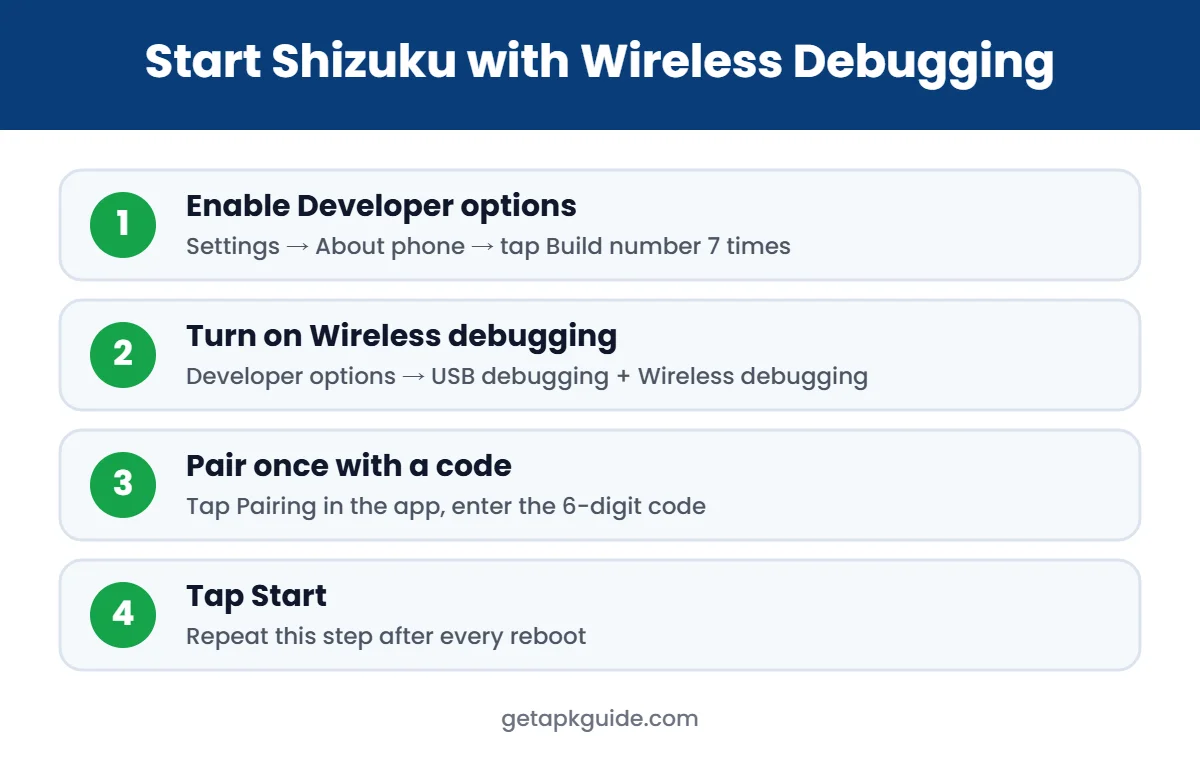
- Developer options enabled: go to Settings → About phone and tap Build number seven times.
- The official app from Google Play or the developer’s GitHub releases page.
- For Android 10 and older without root: a computer with Google’s SDK Platform Tools.
Method 1: Start Shizuku with wireless debugging (Android 11+)
This is the easiest method for most people because it needs no computer.
- Open Settings → System → Developer options and turn on USB debugging, then Wireless debugging. Your phone must be on Wi-Fi.
- Open the app and tap Pairing under “Start via Wireless debugging”. A notification appears.
- In Wireless debugging, tap Pair device with pairing code. Type the six-digit code into that notification.
- Go back to the app and tap Start. The status at the top should change to “Shizuku is running”.
Pairing is needed only once. If it fails to start, turn Wireless debugging off and on again, then retry.
Method 2: Start Shizuku with ADB from a computer
Use this on Android 10 or older, or if wireless debugging does not work on your phone.
- Install Google’s SDK Platform Tools on your computer and open a terminal in that folder.
- Turn on USB debugging, connect the phone by cable and approve the “Allow USB debugging?” prompt.
- Run
adb devicesand confirm your phone is listed. - Run this command (for Shizuku v11.2.0 or newer):
adb shell sh /sdcard/Android/data/moe.shizuku.privileged.api/start.sh - Open the app on the phone and check that it shows “running”.
On Windows PowerShell, macOS or Linux you may need to type ./adb instead of adb.
Method 3: Start Shizuku on a rooted phone
If your phone is already rooted, open the app, tap Start under the root option and grant root access. Allow it to run in the background if you want it to start automatically after a reboot. We do not recommend rooting just for this, because the non-root methods cover most needs.
Shizuku stops after a reboot: is that normal?
Yes. With the wireless and computer methods, the service ends when the phone restarts. After each reboot, turn on Wireless debugging and tap Start again, or rerun the ADB command from your computer. Only rooted phones can start it automatically.
Brand-specific settings that block Shizuku
| Phone brand / skin | Setting to check |
|---|---|
| Xiaomi, Redmi, POCO (MIUI/HyperOS) | Turn on “USB debugging (Security settings)” and set notification style to Android |
| OPPO, OnePlus (ColorOS) | Turn off “Permission monitoring” in Developer options |
| Huawei (EMUI) | Allow ADB debugging in “Charge only” mode |
| Any phone, Android 11+ | Turn on “Disable adb authorization timeout” |
Keep USB mode on “Charge only” and keep Developer options enabled while you use it.
Is Shizuku safe?
The app itself is open source and widely used, and every app must ask for your approval before it can use the service. The real risk comes from which apps you approve. An approved app gets ADB-level power, so it could change settings or read data that ordinary apps cannot.
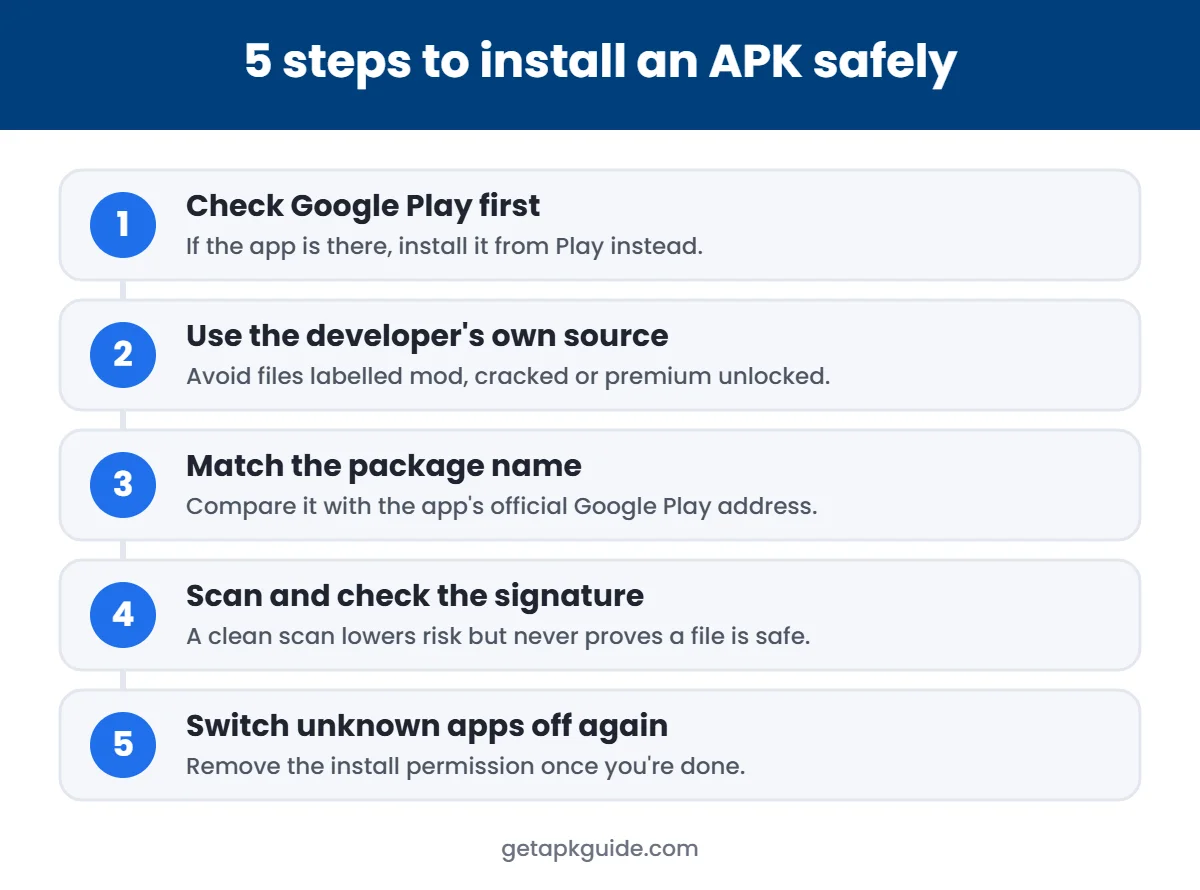
- Download it only from Google Play or the official GitHub releases. Avoid random APK mirror sites.
- Approve only apps you trust and actually need. You can revoke access anytime inside the app.
- Turn off Wireless debugging and USB debugging when you are done. Some banking apps refuse to run while debugging is on.
- Do not use these tools to remove system components you do not understand. Disabling the wrong package can cause boot loops or broken features.
- Keep Google Play Protect turned on.
Common Shizuku problems and fixes
| Problem | Fix |
|---|---|
| “Pairing failed” or no code field | Open the pairing notification while the pairing code is on screen; use split screen if needed |
| Starts then stops right away | Disable battery optimisation for the app and turn off brand permission monitoring |
| App says the service is not running | Start the service again after every reboot |
| Wireless debugging keeps turning off | Stay on the same Wi-Fi network; the feature switches off when Wi-Fi changes |
Shizuku vs root vs a computer: which should you use?
| Option | Needs a PC? | Survives reboot? | Risk level |
|---|---|---|---|
| Shizuku (wireless) | No | No – tap Start again | Low, if you approve only trusted apps |
| Shizuku (ADB) | Yes, each reboot | No | Low |
| Root (Magisk etc.) | Usually, to unlock | Yes | High – may break banking apps, OTA updates and warranty |
| Plain ADB commands | Yes | Changes usually stay | Low to medium, depends on the command |
For most people, the wireless method gives the best balance. You get the advanced features you need without unlocking the bootloader, wiping the phone or losing security updates.
What kinds of apps work with Shizuku?
Only apps that include Shizuku support can use it. Typical categories are:
- File managers that open Android/data and Android/obb, such as Total Commander. See our best file manager apps list.
- App managers and freezers that disable unused system apps without uninstalling them.
- Terminal apps that run ADB shell commands on the phone itself.
- Customisation tools that change hidden system settings, animations or permissions.
Each of these apps should explain in its own description that it uses Shizuku. If an app asks you to install a separate “Shizuku helper” from an unknown website, treat that as a red flag. If you install the app from GitHub instead of Google Play, follow the five safe-install steps below.
Good habits when using ADB-level tools
- Write down every change you make, so you can undo it later.
- Change one thing at a time and restart the phone to check it still works.
- Back up photos and important files before disabling any system app.
- Keep the phone updated; system updates can reset some changes, which is normal.
How to stop or remove it safely
If you no longer need the service, you can switch it off completely in a few steps:
- Open the app list inside it and revoke access for every app you approved.
- Turn off Wireless debugging and USB debugging in Developer options.
- Optionally turn off Developer options altogether with the toggle at the top of that screen.
- Uninstall it like any other app from Settings → Apps.
Removing it does not undo changes that other apps already made, such as disabled system apps or changed settings. Re-enable those first from the app that made them, or from Settings → Apps → Show system apps. When in doubt, a factory reset restores every default, but back up your data before doing that.
Quick summary: install the official app, start it with wireless debugging, approve only trusted apps, and turn debugging off when you are finished.
FAQ
Does Shizuku need root?
No. It works without root through wireless debugging on Android 11+ or through ADB from a computer. Root is optional.
Is Shizuku free to use?
Yes. It is free and open source.
Can Shizuku access Android/data on Android 13 and 14?
Many supporting file managers use it to reach Android/data and Android/obb on newer Android versions. Support depends on the file manager, so check the app’s own documentation.
Will Shizuku void my warranty?
It does not unlock or modify the system, so it is different from rooting. Warranty rules vary by brand, so check your manufacturer’s policy if you are unsure.
Looking for other tools? See our Nova Launcher guide and the APK installer guide.