App Cloner: 5 Safe Ways to Run Two Copies of an App on Android
An app cloner lets you run two copies of the same app on one Android phone, for example two WhatsApp numbers or a personal and a work Instagram account. Most phones from Samsung, Xiaomi, OnePlus and OPPO already include a built-in app cloner, so you often do not need to install anything. This guide shows the built-in options brand by brand, the trusted alternatives, and the risks of third-party cloning apps.
We do not host any APK files. If you install an app from outside Google Play, follow our safe APK install guide first.
What does an app cloner do?
Android normally allows only one copy of each app. A cloning tool creates a second, separate copy with its own data and login. The two copies run side by side, so you can stay signed in to two accounts at once without logging out and in again.
There are three ways this is done:
- Built-in dual apps: the phone maker adds a hidden second user space for selected apps.
- Work profile: Android’s own work profile feature runs a second copy of any app with a briefcase badge.
- Third-party cloning apps: they wrap the target app inside their own container, which needs more trust.
Built-in app cloner by phone brand
| Brand | Feature name | Where to find it |
|---|---|---|
| Samsung | Dual Messenger | Settings → Advanced features → Dual Messenger |
| Xiaomi, Redmi, POCO | Dual apps | Settings → Apps → Dual apps (or long-press an icon → Create clone on some models) |
| OnePlus | Parallel Apps | Settings → Utilities → Parallel Apps |
| OPPO, Realme | Clone Apps / App Cloner | Settings → Apps (search “clone”) |
| Other brands | Varies | Search Settings for “dual”, “clone” or “twin” |
Menu names change with each software update, so the quickest method is to open Settings and search for “dual” or “clone”.

How to clone an app on Samsung (Dual Messenger)
- Open Settings → Advanced features → Dual Messenger.
- Turn on the switch next to the app you want to duplicate, such as WhatsApp or Telegram.
- Tap Install when asked.
- A second icon with a small badge appears on the home screen. Open it and sign in with your second account.
Only messaging and social apps that Samsung supports appear in this list.
How to clone an app on Xiaomi, Redmi and POCO (Dual apps)
- Open Settings → Apps → Dual apps.
- Turn on the app you want to clone.
- Confirm, then open the new copy from the home screen.
Use the Android work profile as an app cloner
If your phone has no built-in app cloner, Android’s work profile can give you a second copy of almost any app. Open-source tools such as Shelter (available on F-Droid) or Island set up a work profile for you. Cloned apps appear in a separate Work tab with a briefcase icon, and you can pause the whole profile with one tap.
This method uses Android’s own isolation, so the second app cannot read the main app’s data. It does require installing apps into the work profile from Google Play or by cloning them with the tool.
Third-party app cloner apps: what to know
Search results are full of “app cloner APK” downloads and “unlimited clone” apps. Some well-known cloning apps exist, but this type of tool needs extra caution:
- They see everything inside the clone. The cloning app runs the copied app inside its own container, so it can technically read what you type or receive in that copy.
- Heavy ads and subscriptions. Many free cloning apps show full-screen ads or lock basic features behind weekly subscriptions.
- Account bans. Some apps and games detect modified or containerised copies and may block the account.
- Fake download sites. “Premium unlocked” versions are modified by unknown people. Read why mod APKs are risky.
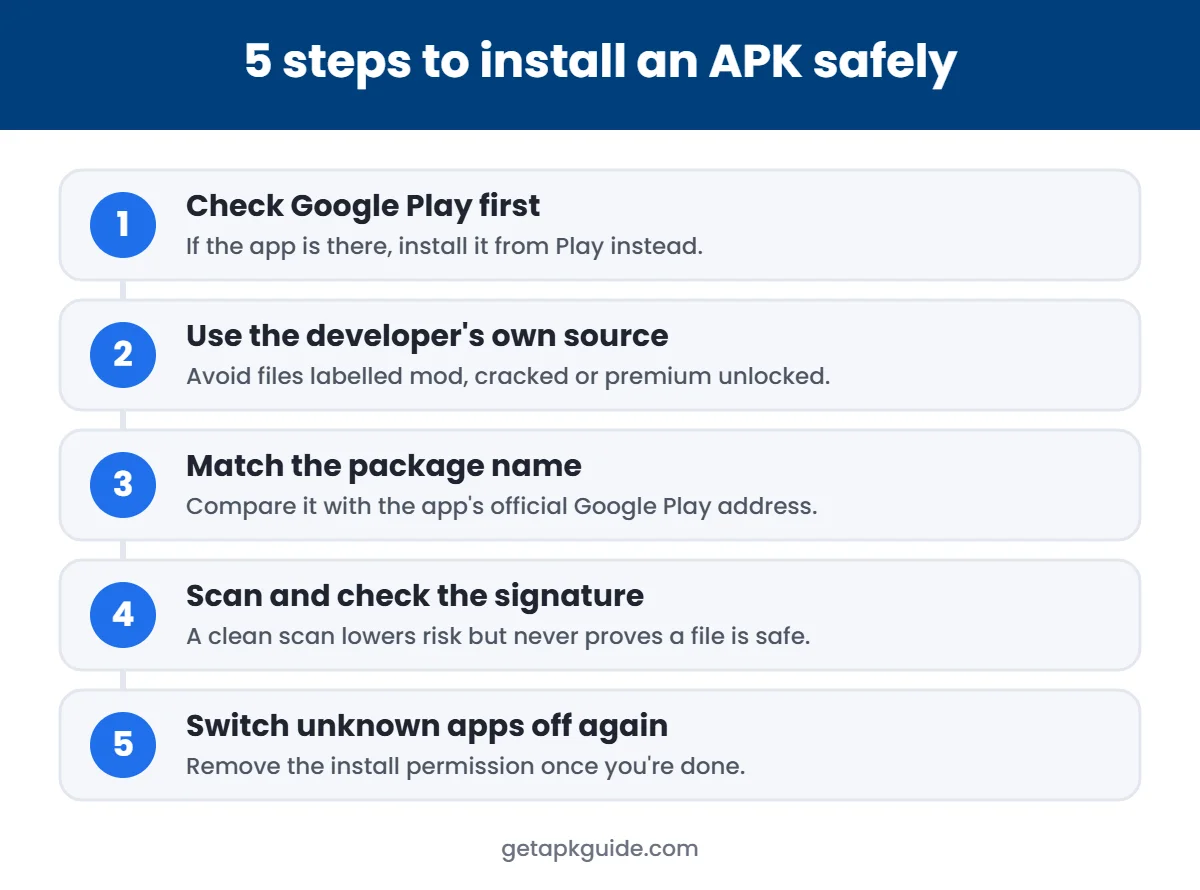
If you choose a third-party tool, install it only from Google Play or the developer’s official site, read recent reviews, and never use the cloned copy for banking or payment apps. If the tool is not on Google Play, follow the five safe-install steps below.
Two WhatsApp accounts without any app cloner
WhatsApp on Android now supports a second account inside the same app, so you may not need cloning at all for WhatsApp:
- Make sure the second number is active on your phone (a second SIM or eSIM).
- Update WhatsApp from Google Play.
- Open WhatsApp → Settings and tap the arrow next to your name.
- Tap Add account and verify the second number.
You can then switch between the two accounts from the same menu. If you do not see the arrow yet, the feature may still be rolling out to your device or region.
Which method should you use?
| Need | Best method |
|---|---|
| Two WhatsApp or Telegram accounts | Built-in dual apps (or WhatsApp’s own multi-account feature where available) |
| Clone an app your phone does not support | Work profile with Shelter or Island |
| Keep work apps separate | Work profile |
| Clone banking or payment apps | Not recommended with any method |
App cloner vs multiple users vs a second phone
Cloning is not the only way to keep two accounts apart. Here is how the main options compare:
| Option | Separate data? | Convenience | Best for |
|---|---|---|---|
| Built-in app cloner | Yes, per app | Very easy – both icons on one home screen | Two messaging or social accounts |
| Work profile | Yes, full profile | Easy – separate Work tab | Work and personal separation |
| Multiple users (Settings → System → Multiple users) | Yes, whole phone | Slow – you must switch users | Sharing a phone with family |
| Second phone | Completely separate | Least convenient | Strict separation or business use |
For most people the built-in app cloner or the work profile gives the right balance. Multiple users suit shared tablets better than personal phones, because notifications from the other user are not shown while you are switched away.
Whichever app cloner method you choose, test it with a non-critical app first. Make sure notifications, backups and media downloads work in the second copy before you depend on it every day.
Common app cloner problems and fixes
| Problem | Fix |
|---|---|
| App not shown in the dual apps list | Your brand does not support it; use a work profile instead |
| Clone stops getting notifications | Disable battery optimisation for the cloned app |
| Both copies deleted | Uninstalling the original app usually removes the clone too |
| Clone uses a lot of storage | Clear its cache from Settings → Apps |
Tips for using two copies of an app safely
- Give the cloned app a clear name or badge so you do not send a message from the wrong account.
- Use different screen locks or fingerprints only if your phone supports separate profiles.
- Back up chats in each copy separately; backups do not merge.
- Remove clones you no longer use to save storage and battery.
How to remove a cloned app
Removing a clone is as simple as creating one:
- Built-in dual apps: go back to the same menu (Dual Messenger, Dual apps or Parallel Apps) and turn the switch off. Android asks whether to delete the clone and its data.
- Work profile: uninstall the app from the Work tab, or remove the whole work profile from Settings → Accounts (the exact menu varies by brand).
- Third-party tool: delete the clone inside the tool first, then uninstall the tool itself.
Before removing a cloned messaging app, back up its chats. Deleting the clone also deletes the data stored inside it.
Privacy checklist before you clone an app
- Check which permissions the cloning tool asks for. Contacts, SMS and accessibility access are red flags for a simple cloner.
- Read the privacy policy and check whether the developer collects usage data.
- Do not sign in to your main Google account inside an unknown cloning container.
- Keep Google Play Protect turned on and scan the phone after installing any new tool.
- Prefer built-in options; they are maintained by the phone maker and receive security updates with the system.
Following this checklist keeps the convenience of two accounts without handing your messages to an unknown developer.
Who should use two copies of an app?
Running a second copy is useful in a few common situations:
- Small business owners who keep customer chats on a separate number.
- Freelancers and creators who manage a personal and a public social media account.
- People with two SIM cards who want each number on its own messaging app.
- Parents who manage a child’s account alongside their own.
If none of these apply, a single account with good privacy settings is simpler and uses less battery and storage. Start with one extra copy, see how it fits your routine, and add more only if you really need them.
FAQ
Is an app cloner safe?
A built-in app cloner and the Android work profile are generally safe because they use system features. Third-party cloning apps add risk because they run your app inside their own container.
Can I clone any app?
Built-in tools support a limited list, mostly messaging and social apps. A work profile supports nearly any app from Google Play.
Will cloning get my account banned?
Built-in features rarely cause problems. Some games and apps block modified or containerised copies, so check the app’s rules first.
Does a cloned app use extra battery?
Yes, a little. Two copies running in the background use more battery and data than one.
Looking for more Android tools? See our Shizuku guide and best file manager apps. For official details on work profiles, see Google’s work profile help page.


