Google Play Protect: What It Does and What to Do When It Blocks an App
Google Play Protect is the security system built into Android phones that have Google Play. It checks apps before you download them from the Play Store, scans apps from other sources, and warns you about anything it considers harmful. This guide explains what Play Protect does, how to check it is on, what its warnings mean, and what to do if Play Protect blocks an app.
All menu paths below follow Google’s official Play Protect help page.
What Google Play Protect does
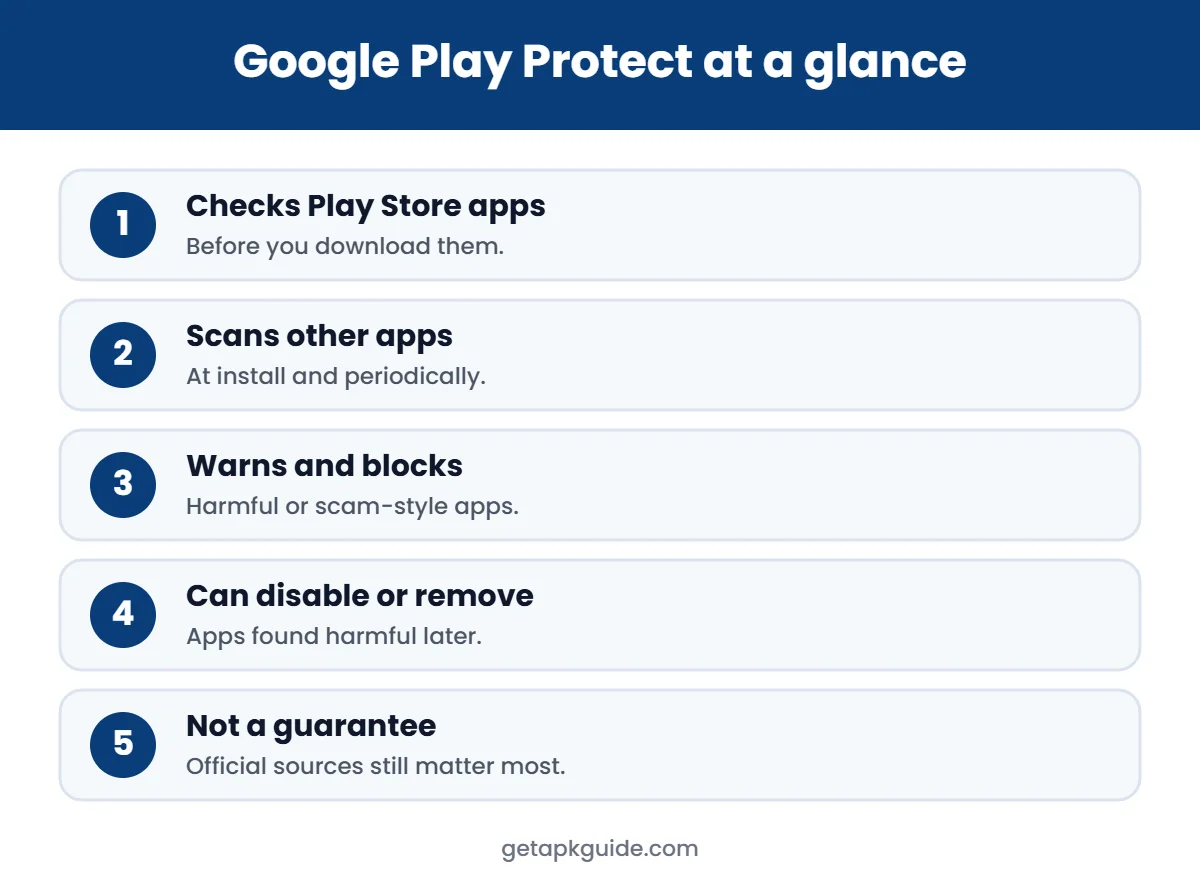
- Checks Play Store apps before you download them.
- Scans your phone for potentially harmful apps from other sources, both when you install them and periodically afterwards.
- Warns you about harmful apps and apps that hide or misrepresent important information.
- Sends privacy alerts about apps that can access your personal information.
- May block unverified apps that request sensitive permissions often used in financial scams.
On older phones (Android 6 to 10), Google Play Protect can also reset permissions for apps you have not used for about three months.
How to check that Google Play Protect is on
- Open the Google Play Store app.
- Tap your profile icon at the top right.
- Tap Play Protect, then Settings.
- Make sure Scan apps with Play Protect is turned on.
Google Play Protect is on by default, and Google recommends keeping it that way. On the main Play Protect screen you can also tap Scan to check your phone right now.
Improve harmful app detection
In the same settings screen, Improve harmful app detection lets Play Protect send unknown apps from outside Google Play to Google for checking. With it off, you may be asked to send an unscanned app manually before installing.
What Google Play Protect warnings mean
| Message | What it means | What to do |
|---|---|---|
| Harmful app blocked | Play Protect recognises the file as harmful | Do not install. Delete the file. |
| Send app for a security check? | The app has never been scanned | Let it scan, or cancel if you are unsure of the source |
| Unsafe app / app may be harmful | Behaviour looks risky | Cancel and use the official version |
| App disabled or removed | An installed app was found harmful | Uninstall it, change passwords used in it |
Play Protect blocked an app: what now?
When Google Play Protect blocks an app, the safest response is to stop. The warning is based on what Google knows about that file. In practice:
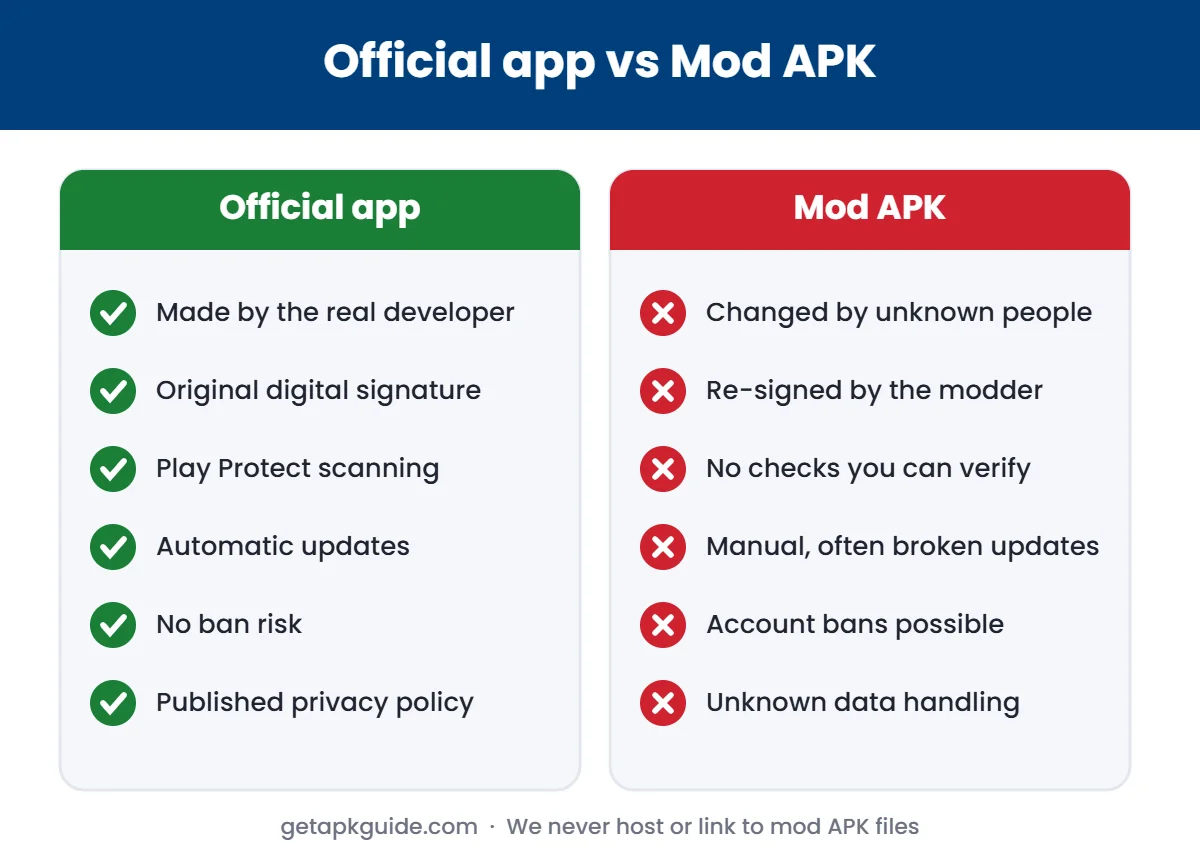
- Check the source. Is it the developer’s official site, or a mod or “premium unlocked” page? Files from mod stores are a common reason for warnings. See Is HappyMod safe?.
- Look for the app on Google Play. If it is there, install that version instead.
- Do not turn off Play Protect just to get past one warning. It also protects the rest of your phone.
- If you are the developer or sure the app is legitimate, report the warning through Google’s help page rather than disabling protection.
If Play Protect finds a harmful app already installed
- Tap the notification, then tap Uninstall. The app may already be disabled until you do.
- Run a new Scan from the Play Protect screen.
- Change passwords for any accounts you used in that app.
- Turn off install unknown apps for your browser and file manager. Our guide on install unknown apps shows where it is.
What Play Protect cannot do
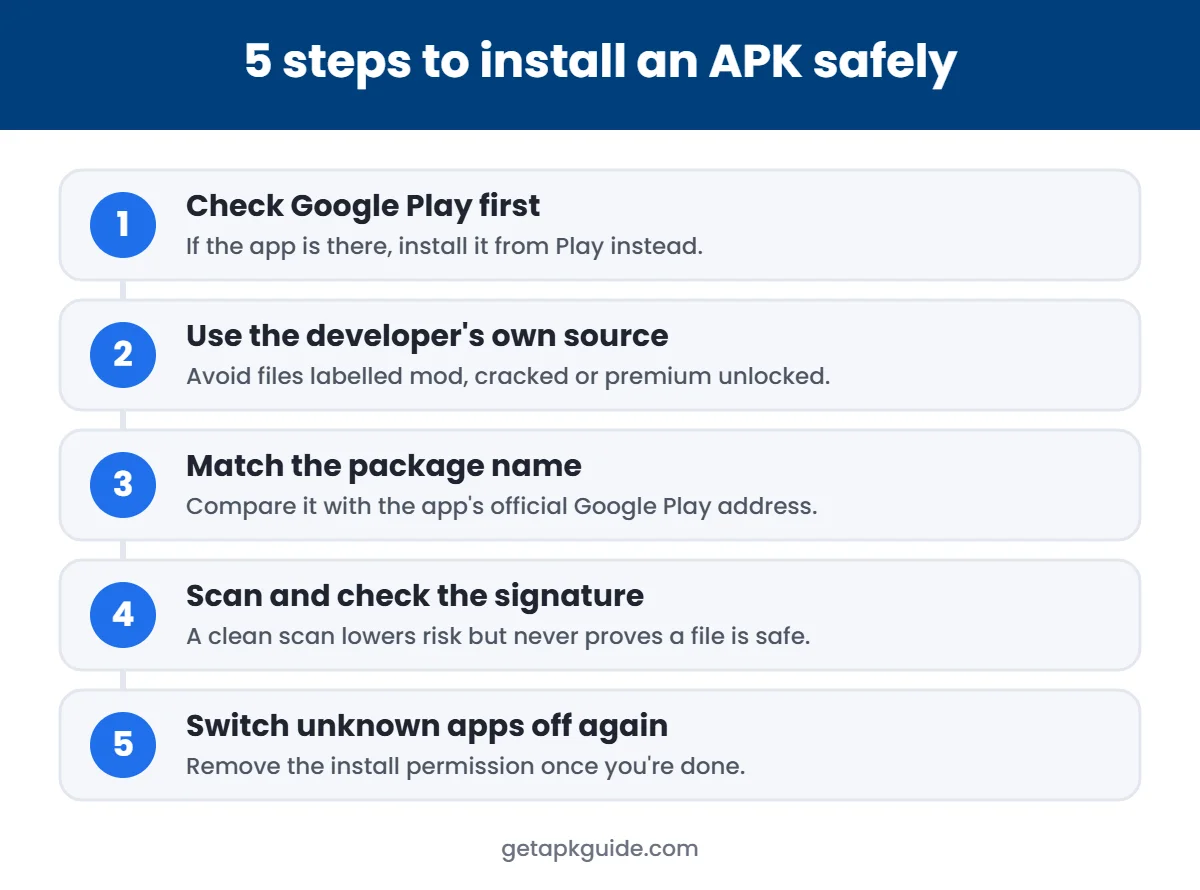
Google Play Protect is a strong first layer, but it is not a guarantee. It focuses on known harmful behaviour, so a brand-new or carefully hidden threat can slip through. It also cannot stop you giving an app permissions or entering a password into a fake login screen. That is why official sources matter more than any scan. Our safe APK install guide covers the full routine.
FAQ
Is Google Play Protect free?
Yes. Google Play Protect is built into Android phones with Google Play and needs no separate app.
Should I turn off Google Play Protect to install an APK?
No. If Play Protect blocks a file, that is a reason to find a safer source, not to disable protection.
Does Play Protect work on apps from outside Google Play?
Yes. It scans apps from other sources when you install them and periodically afterwards.
Is Play Protect enough on its own?
It helps a lot, but safe habits matter too: official sources, careful permissions, and keeping Android updated.