How to Allow Install Unknown Apps on Android (2026 Guide)
Since Android 8, there is no single “Unknown sources” switch any more. Instead, Android asks you to allow install unknown apps for each app that opens an APK file, such as Chrome or your file manager. This guide shows where the setting is on Pixel, Samsung, Xiaomi and other phones, how to turn it off again, and how to stay safe while it is on.
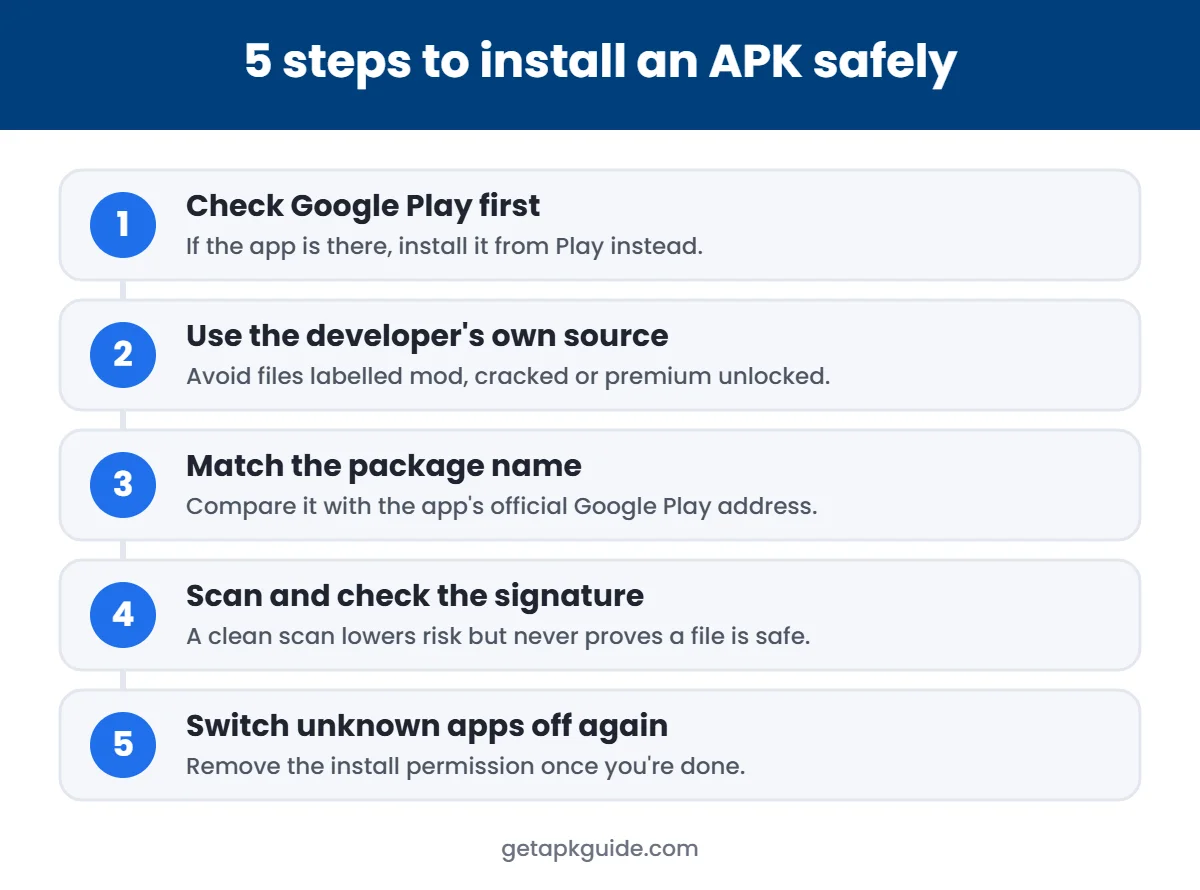
Before you change anything: if the app is on Google Play, install it from there. You only need install unknown apps for apps that are genuinely not on Play, such as an official APK from a developer’s own website. Our safe APK install guide covers how to check a file first.
What does “install unknown apps” mean?
On Android, an unknown app is any app that does not come from your phone’s built-in store, such as Google Play. The Install unknown apps permission decides which apps (for example Chrome or your file manager) are allowed to install APK files.
- Android 8 and newer: the permission is given per app, in Settings → Apps → Special app access → Install unknown apps.
- Android 7 and older: a single “Unknown sources” switch in Security settings controlled it for the whole phone.
- Safety: allow it only for the app you are using right now, and turn it off again after installing.
The steps below show exactly where to find the setting on Pixel, Samsung, Xiaomi and other phones.
What “install unknown apps” actually allows
The permission lets one specific app (for example Chrome) hand APK files to Android’s installer. It does not let every app install software, and it does not switch off Google Play Protect. Each time you install, Android still shows a confirmation screen.
That is why it is safer to allow it only for the one app you need, and only for as long as you need it.
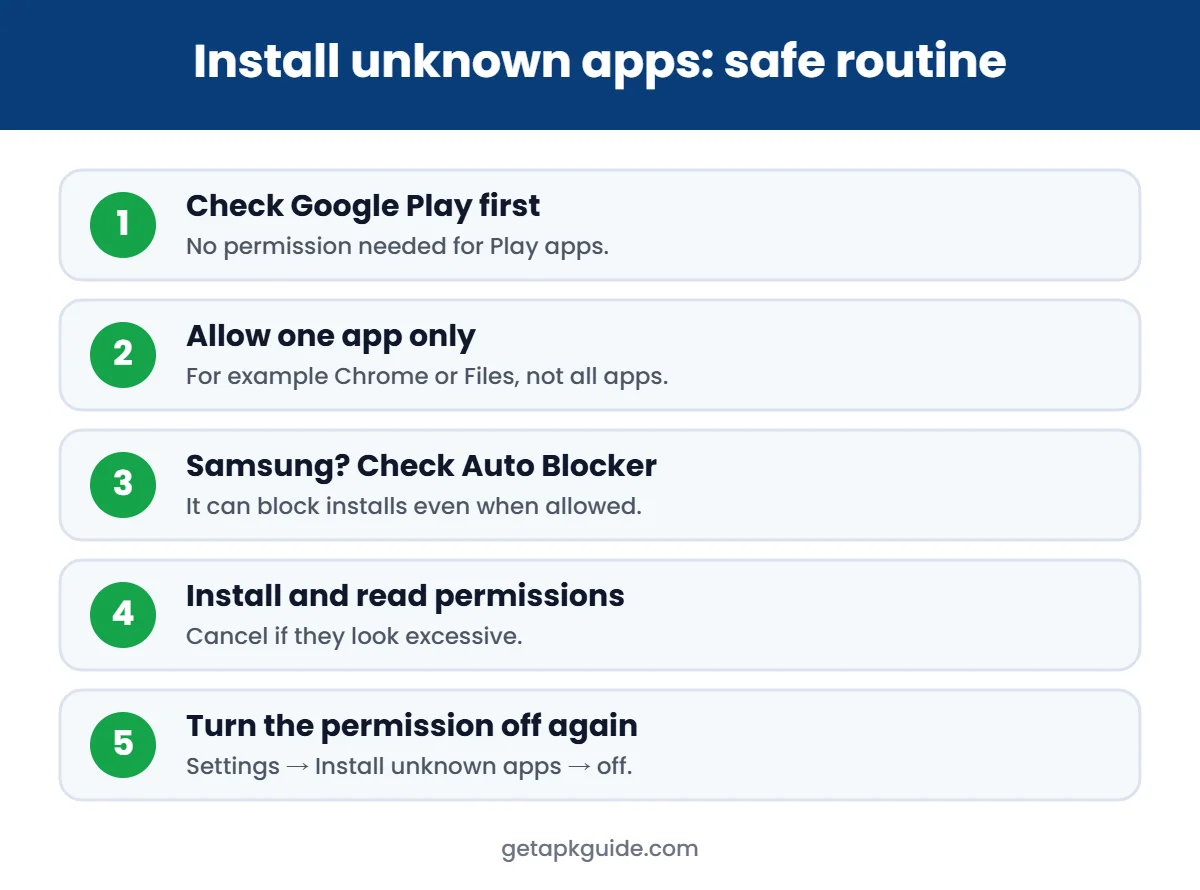
How to allow install unknown apps on any Android phone
The menu names differ between brands, but the quickest route works almost everywhere:
- Tap the APK file you downloaded.
- Android shows a message that your phone is not allowed to install from this source. Tap Settings.
- Turn on Allow from this source.
- Go back and tap Install.
If you prefer to find it yourself, open Settings and type install unknown apps in the search bar.
Google Pixel and stock Android
- Open Settings → Apps.
- Tap Special app access (on some versions it is under Advanced).
- Tap Install unknown apps.
- Choose the app, for example Chrome or Files, and turn on Allow from this source.
Samsung Galaxy (One UI)
Samsung documents this path on its support site:
- Open Settings → Security and privacy.
- Tap More security settings.
- Tap Install unknown apps.
- Choose the app you will install from and turn its switch on.
Samsung Auto Blocker
On One UI 6.1.1 and later, Samsung’s Auto Blocker blocks apps from sources other than Google Play and Galaxy Store, even if the permission is allowed. It is on by default on phones that shipped with One UI 6.1.1. You can find it in Settings → Security and privacy → Auto Blocker. If you turn it off for one install, turn it back on afterwards. See Samsung’s Auto Blocker help page for details.
Xiaomi, Redmi and POCO (MIUI / HyperOS)
Xiaomi’s support page lists this route:
- Open Settings → Additional settings → Privacy.
- Tap Special app access.
- Tap Install unknown apps.
- Select the app you trust and allow it.
Menu names change between MIUI and HyperOS versions. If you cannot find it, use the search bar in Settings. Some Xiaomi phones also run their own security scan during install, which you should not skip.
Other brands (Oppo, Vivo, Realme, OnePlus, Motorola)
Most of these follow a similar pattern: Settings → Apps → Special app access → Install unknown apps, or a similar path under Privacy or Security. The Settings search bar is the most reliable way to find it on any brand.
How to turn install unknown apps off again
- Go back to the same settings screen.
- Tap each app that shows Allowed.
- Turn Allow from this source off.
Leaving the permission on for a browser means any page that tricks you into downloading an APK is one tap away from being installed. Turning it off costs you nothing.
Staying safe while the permission is on
- Only download from the developer’s official website, never from “mod” or “premium unlocked” pages.
- Keep Google Play Protect turned on. Our Google Play Protect guide explains what its warnings mean.
- Read the permissions the app asks for before you accept.
- If the install fails, see our App not installed fixes rather than switching to a riskier file.

FAQ
Is it safe to allow install unknown apps?
It is safe enough for a short time and for one trusted app. The risk comes from the files you install, not from the setting itself.
Where is “Unknown sources” on Android 14 or 15?
The old global switch was replaced by the per-app install unknown apps permission on Android 8. Newer versions use the same system.
Why is install unknown apps greyed out?
Your phone may be managed by a school or company, or a parental control app may be restricting the setting. Only the administrator can change that.
Do I need this permission to update Play Store apps?
No. Apps installed from Google Play update through Play and never need this permission.