How to Install APK on Firestick 2026: Easy Downloader Method

Want to install APK on Firestick? Amazon Fire TV Stick, Fire TV Cube and Fire TV smart TVs run Fire OS, which is based on Android, so they can install APK files that are not in the Amazon Appstore. This 2026 guide shows the easy method with the Downloader app, how to unlock the hidden Developer Options menu, and how to keep your Fire TV safe.
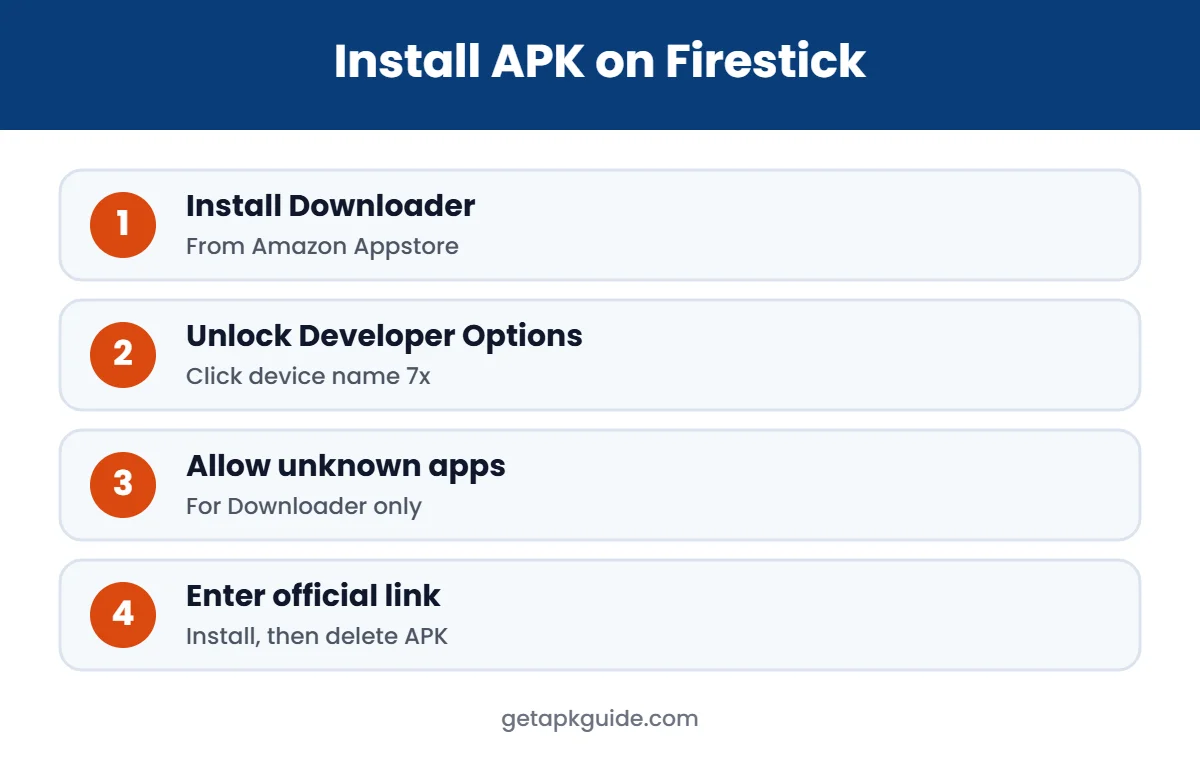
Quick answer: install Downloader from the Amazon Appstore, unlock Developer Options by clicking your device name 7 times in Settings, My Fire TV, About, allow Downloader to install unknown apps, then enter the official download link in Downloader and install the APK.
Why Install APK on Firestick?
The Amazon Appstore covers most popular streaming services, but some useful apps are missing. People install APK on Firestick to get an official app that is not in their country’s Appstore, a media player such as VLC or MX Player (see VLC vs MX Player), a file manager, or a developer’s own beta version. These are all legitimate reasons.
What you should not do is install APK on Firestick to unlock paid channels or watch pirated content. Those apps are frequently bundled with adware or spyware, and in many countries using them is illegal.
Before You Install APK on Firestick
- Search the Amazon Appstore first. Apps from the Amazon Appstore update automatically and are checked by Amazon.
- Use only official download links from the app developer. Read how to install APK files safely.
- Avoid “free movies”, IPTV and mod APKs. They are a top source of malware and pirated streams on Fire TV.
- Check storage. Fire TV Sticks have limited space; uninstall apps you do not use.
Free Up Storage Before Installing
Fire TV Sticks usually have only a few gigabytes of usable storage, and large streaming apps fill it quickly. If an install fails or the device feels slow, free up space first:
- Open Settings, Applications, Manage Installed Applications and uninstall apps you do not use.
- Select large apps and choose Clear cache; this does not delete your login.
- In Downloader, delete APK files after installing them.
- Restart the Fire TV by holding Select and Play/Pause for a few seconds.
A clean device installs apps faster and is less likely to show “App not installed” or “There was a problem parsing the package” errors.
Step 1: Install the Downloader App to Install APK on Firestick
- On the Fire TV home screen, open Find (magnifier) and search for Downloader.
- Choose the orange Downloader app by AFTVnews and select Get or Download.
- Open Downloader once and allow it to access files if asked.
The easiest way to install APK on Firestick is Downloader, a simple browser and file downloader designed for Fire TV remotes. It is free and available in the official Amazon Appstore.
Tip: if Downloader asks for permission to access photos, media or files, allow it. It needs this to save the APK to your Fire TV before installing it.
Step 2: Unlock Developer Options on Fire TV
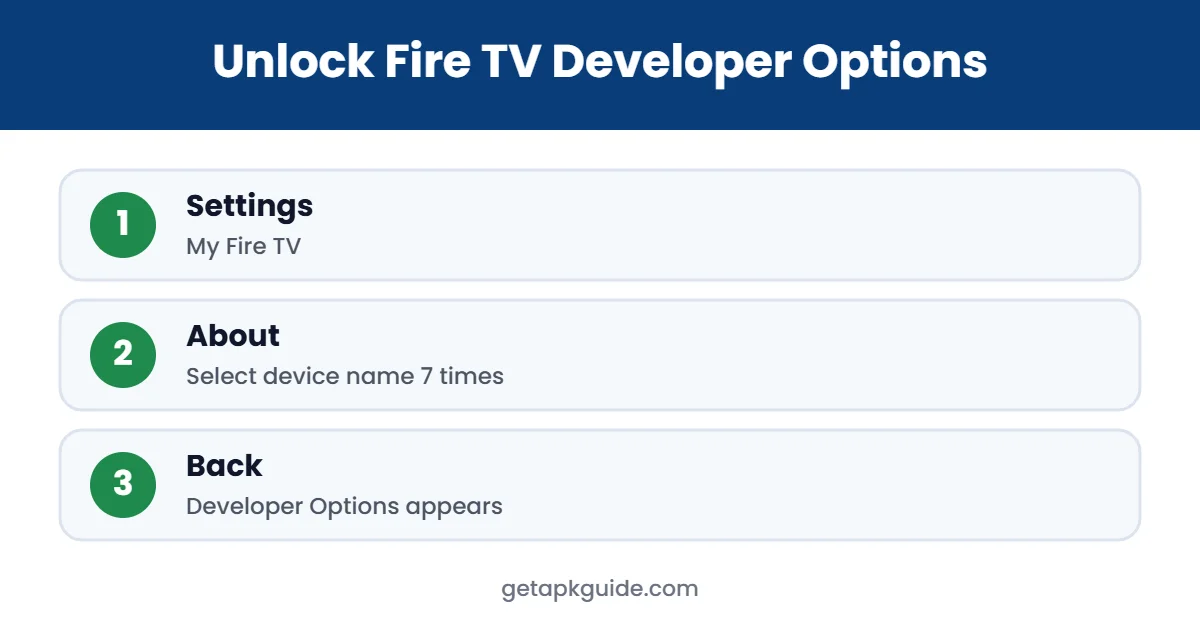
On recent Fire OS updates, Amazon hides Developer Options. To unlock it (AFTVnews):
- Open Settings and select My Fire TV. On a Fire TV smart TV, select Device & Software.
- Select About.
- Highlight the first item, your device name, and press Select about 7 times. A countdown appears at the bottom.
- When you see “No need, you are already a developer”, press Back once.
- Developer Options now appears in the My Fire TV menu.
Step 3: Allow Downloader to Install Unknown Apps
- Go to Settings, My Fire TV, Developer Options.
- Select Install unknown apps (on older Fire OS, “Apps from Unknown Sources”).
- Find Downloader in the list and turn it ON.
Only enable this for Downloader or the one app you trust. Leaving unknown sources open for every app makes your Fire TV easier to attack. Our install unknown apps guide explains the setting in more detail.
Step 4: Install APK on Firestick With Downloader
- Open Downloader and select the URL box on the Home tab.
- Type the official download link of the app, or a Downloader short code published by the developer, and select Go.
- Wait for the download to finish. The Android installer opens automatically.
- Select Install, then Done or Open.
- Back in Downloader, choose Delete to remove the APK file and save storage.
You will find the new app in Settings, Applications, Manage Installed Applications, or under Your Apps & Channels on the home screen, where you can move it to the front row.
Advanced: Install APK on Firestick With ADB
If you have a computer on the same Wi-Fi network, ADB is another way to install APK on Firestick without typing long links with the remote.
- Unlock Developer Options as shown above and turn on ADB debugging.
- Find the Fire TV’s IP address in Settings, My Fire TV, About, Network.
- On your computer, install Android platform tools from the official Android developers site.
- Run
adb connect FIRE_TV_IPand allow the connection on the TV. - Run
adb install appname.apkand wait for “Success”.
Turn ADB debugging off again afterwards, because it allows any device on your network to send commands to your Fire TV.
Firestick Models and Fire OS Versions
The steps in this guide work on current Fire TV Sticks, Fire TV Stick 4K models, Fire TV Cube and Fire TV smart TVs. Menu names can change slightly with Fire OS updates; on smart TVs, for example, “My Fire TV” may appear as “Device & Software”. If a menu looks different, follow the same idea: open About, unlock Developer Options, then allow unknown apps for one trusted installer.
Are Downloader Codes Safe?
Many websites share short numeric “Downloader codes” that open a download page in the Downloader app. A code is just a shortcut to a web address; it does not make a file safer. Before using one, check who published it:
- Codes from the app’s official developer site are fine to use.
- Codes from YouTube videos, forums or random blogs can point to modified or fake APKs.
- If the code opens a page full of ads or asks you to install another “helper” app first, close it.
When in doubt, type the developer’s full official download URL instead of a code. It takes a few seconds longer, but you know exactly where the file comes from.
Common Problems When You Install APK on Firestick
| Problem | Likely cause | Fix |
|---|---|---|
| Developer Options missing | Menu hidden in new Fire OS | Click device name 7 times in About |
| “App not installed” | Wrong version or not enough space | Get the Fire TV / Android TV build and free space |
| Parse error | Corrupt download or wrong format | Download again; avoid XAPK unless supported |
| Downloader blocked | Unknown apps off for Downloader | Turn it on in Developer Options |
| App will not open | Phone-only app or needs Google services | Use a TV version of the app |
More fixes: App Not Installed, problem parsing the package and APK installation errors.
Keep Your Fire TV Safe After Sideloading
- Turn off “Install unknown apps” for Downloader when you are not using it.
- Uninstall apps you no longer use in Settings, Applications, Manage Installed Applications.
- Never enter Amazon, Google, bank or streaming passwords into unknown apps.
- Keep Fire OS updated in Settings, My Fire TV, About, Check for Updates.
- If the TV becomes slow or shows pop-up ads, remove recently installed apps and restart.
These habits let you install APK on Firestick when you really need to, without turning your living-room TV into a security risk.
To recap the easy method: install Downloader from the Amazon Appstore, unlock Developer Options by clicking your device name seven times, allow Downloader to install unknown apps, and enter only official download links. When you are done, delete the APK file and switch the permission off again. Following these steps, you can install APK on Firestick in under ten minutes, even if you have never done it before, without risking your Amazon account or your home network.
If anything does not work as described, compare your Fire OS menu with the screenshots on Amazon’s own help pages, because menu names sometimes change after updates. The overall process, however, stays the same on every Fire TV model.
FAQ: Install APK on Firestick
Is it legal to install APK on Firestick?
Yes, installing legitimate apps is legal. Using APKs that stream pirated movies, sports or TV channels is not.
Why can’t I find Developer Options on my Fire TV?
Amazon hides it on newer Fire OS versions. Go to Settings, My Fire TV, About, and click your device name about 7 times to unlock it.
Do I need a computer to install APK on Firestick?
No. The Downloader app lets you download and install APK files directly on the Fire TV with the remote.
Can installing APKs damage my Fire TV?
Legitimate apps are fine. Unknown or modified APKs can contain malware, so install only from official developer links.
Will sideloaded apps update automatically?
No. You need to download and install new versions yourself from the same official source.