How to Install APK on Android TV: Step by Step 2026
Want to install APK on Android TV or Google TV? Most smart TVs and streaming boxes from Sony, TCL, Hisense, Philips, Xiaomi, Chromecast with Google TV and Google TV Streamer run Android TV OS, so they can install APK files just like a phone. This step-by-step 2026 guide shows how to enable developer options and unknown sources, three safe ways to get the APK onto your TV, and how to fix common problems.
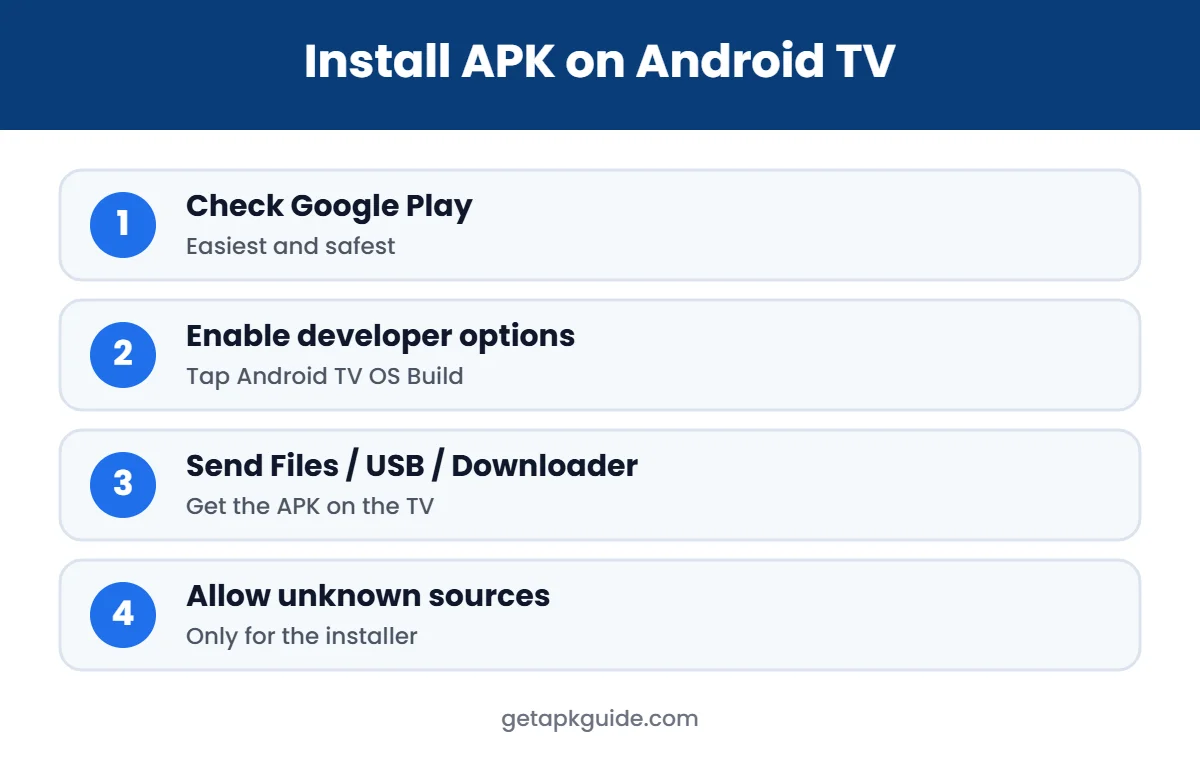
Quick answer: first check the Google Play Store on your TV. If the app is not there, enable developer options, then use an app such as Send Files to TV or a file manager to install the APK, and allow “unknown sources” only for that installer app.
Before You Install APK on Android TV
- Check Google Play first. Many TV apps are available there, with automatic updates.
- Use a TV version of the app. Phone apps often do not work with a remote control.
- Get the APK from an official source, such as the developer’s website. Read how to install APK files safely.
- Never install mod or “free premium” streaming apps. They are a common source of malware and illegal streams.
Which Apps Are Worth Sideloading on a TV?
Most people sideload only a handful of apps on a TV. Good, legitimate reasons include:
- A file manager or media player, such as VLC, that is not available in your TV’s regional store (see our VLC APK guide).
- An official app that the developer offers on its website but not on the TV version of Google Play.
- A newer version of an app your TV maker has not yet approved.
- Tools that help you manage the TV, such as a launcher or a remote-control app.
If an app promises free premium channels, paid sports or movies, it is almost certainly unofficial. Those apps often show aggressive ads, collect data or stop working without warning, and they can be illegal in your country.
Step 1: Enable Developer Options to Install APK on Android TV
- Open Settings (gear icon) on your TV.
- Go to System, then About. On some TVs it is Device Preferences, then About.
- Highlight Android TV OS Build (or “Build”) and press Select repeatedly.
- When you see “You are now a developer!”, go back. Developer options are now enabled.
Menu names vary a little by brand and Android TV version. Android Authority tested these steps on a Chromecast with Google TV running Android TV OS 12 (Android Authority).
Step 2: Choose How to Install APK on Android TV
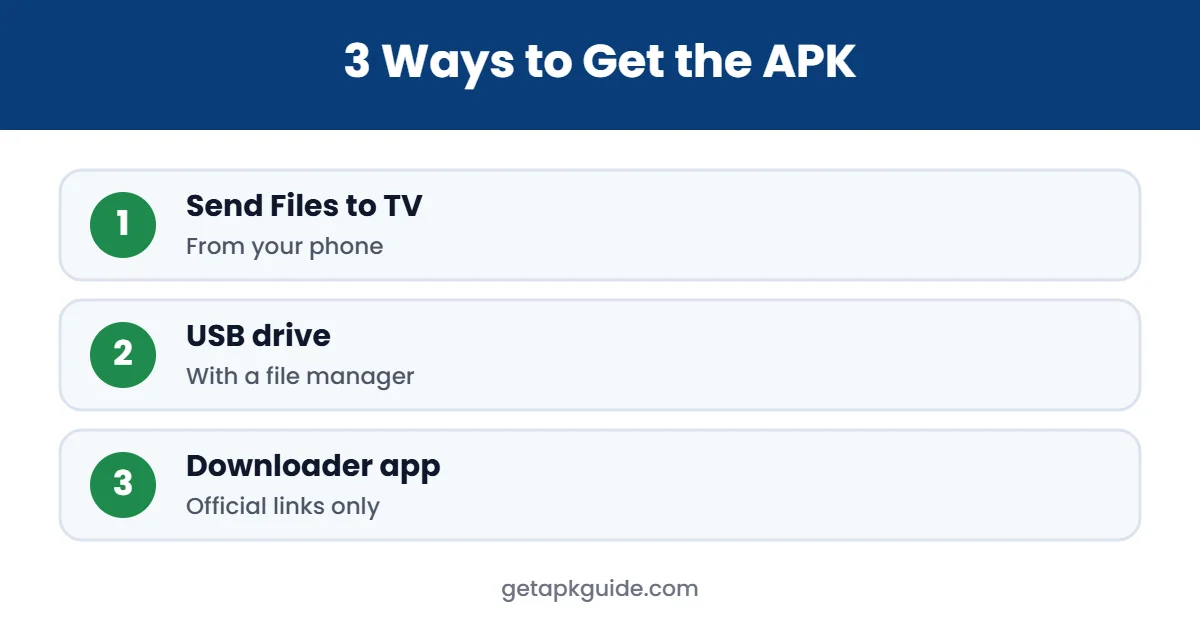
Method A: Send Files to TV (from your phone)
- Install Send Files to TV from Google Play on both your phone and your TV.
- Open it on the TV and choose Receive.
- On your phone, choose Send, pick the APK file and select your TV.
- On the TV, open the received file and tap Install.
Method B: USB drive and a file manager
- Copy the APK to a USB drive on your computer.
- Plug the drive into the TV or box.
- Install a file manager from Google Play, such as File Commander, and open the APK from the USB drive.
- Select Install.
Method C: Downloader app
The free Downloader app (by AFTVnews) on Google Play lets you type a URL with the remote and download a file directly to the TV. Only use it with official download links you trust.
Step 3: Allow Unknown Sources for the Installer App
When you open the APK, Android TV will say installs from unknown sources are not allowed. Choose Settings in that prompt and turn on the toggle only for the app you are using (Send Files to TV, your file manager or Downloader). On many TVs you can also find it under Settings, Apps, Security & restrictions, Unknown sources. Turn it off again after installing. Our install unknown apps guide explains why this matters.
Step 4: Open the App After Installing
After you install APK on Android TV, sideloaded phone apps often do not appear on the Android TV home screen because they lack a TV launcher icon. You can open them from Settings, Apps, See all apps, or install a free launcher such as Sideload Launcher from Google Play to show all apps in one place.
A quick note on remotes: many sideloaded apps were designed for touch screens. If an app opens but you cannot move around in it, try a Bluetooth mouse or keyboard, or a free remote-mouse app from Google Play on your phone. Most Android TV boxes also support USB mice, which makes phone-style apps much easier to use on a big screen.
Advanced: Install APK on Android TV With ADB
If you are comfortable with a computer, ADB (Android Debug Bridge) is the most reliable way to install APK on Android TV, especially for split or large apps. It does not need any extra app on the TV.
- Enable developer options as shown above, then open Developer options and turn on Network debugging or USB debugging.
- Find your TV’s IP address in Settings, Network & Internet.
- On your computer, install Android platform tools from the official Android developers site.
- Run
adb connect TV_IP_ADDRESSand accept the prompt on the TV. - Run
adb install appname.apkand wait for “Success”.
Turn debugging off again when you finish, because it lets devices on your network control the TV.
Android TV Box vs Smart TV: Any Difference?
The steps to install APK on Android TV are the same on a smart TV and on a streaming box, because both run Android TV OS or Google TV. The main differences are storage and performance. Smart TVs often have very little free space, so large apps may fail to install, while boxes such as the Nvidia Shield or Google TV Streamer usually have more room. If you see storage errors, clear the cache of apps you do not use, or move the APK to a USB drive and install from there.
Some TV makers also add their own app stores or restrict settings. If a menu mentioned in this guide is missing, check your TV brand’s support pages for the exact path.
Common Problems When You Install APK on Android TV
| Problem | Likely cause | Fix |
|---|---|---|
| “App not installed” | Wrong CPU architecture or Android version | Download the TV or armeabi-v7a version |
| Parse error | Corrupt or incomplete file | Download again from the official source |
| App not on home screen | No TV launcher icon | Open via Settings, Apps or a sideload launcher |
| App does not respond to remote | Phone-only app | Use a TV version or a mouse app |
| Install button greyed out | Overlay app on screen | Close screen-dimmer or overlay apps |
More fixes are in our guides to App Not Installed, problem parsing the package and APK installation errors.
How to Update or Remove Sideloaded TV Apps
- Update: download the new version from the same official source and install it over the old one. Android keeps your data if the signature matches.
- Remove: go to Settings, Apps, select the app and choose Uninstall.
- Clean up: delete old APK files from Downloads or your USB drive to free space.
Once you know these basics, you can install APK on Android TV whenever an app is missing from Google Play, while keeping your TV fast and secure.
Is It Safe to Install APK on Android TV?
Is it risky to install APK on Android TV? Sideloading itself is a normal Android feature, but your TV is connected to your home network and often to your Google account, so a bad app can cause real damage. Stick to official developer downloads, avoid “IPTV” or “free movies” APKs, keep Google Play Protect on, and remove apps you no longer use. If a file is offered as XAPK, see how to install XAPK files.
To recap: check Google Play first, enable developer options, pick one installer app, allow unknown sources only for that app, and download APKs only from official sources. Follow these steps and you can install APK on Android TV in a few minutes without putting your TV, your network or your Google account at risk. If something goes wrong, the troubleshooting table above covers the most common errors.
FAQ: Install APK on Android TV
Can I install APK on Android TV without a computer?
Yes. Use Send Files to TV from your phone, or the Downloader app directly on the TV.
How do I enable unknown sources on Google TV?
Enable developer options first, then allow unknown sources for the installer app when the prompt appears, or under Settings, Apps, Security & restrictions.
Why can’t I find the app after installing?
Many phone apps have no TV icon. Open them from Settings, Apps, See all apps, or use a sideload launcher.
Is it legal to install APK on Android TV?
Installing legitimate apps is legal. Using APKs that unlock paid content or stream pirated TV and movies is not.
Does this work on Chromecast with Google TV?
Yes. Chromecast with Google TV and Google TV Streamer run Android TV OS, so the same steps apply.