What Is an APK File? How to Open It on Any Device (2026)
What is an APK file? If you have ever downloaded an Android app outside Google Play, you have probably seen a file ending in .apk. This beginner-friendly guide explains what an APK file is, what is inside it, how to open an APK file on Android, Windows, Mac, Chromebook and iPhone, and how to tell whether an APK file is safe.
In one sentence: an APK file (Android Package Kit) is the file format Android uses to install apps, similar to an .exe installer on Windows.

What Is an APK File? The Simple Explanation
APK stands for Android Package Kit. Every Android app is delivered to your phone as an APK file, or as a set of split APK files. When you install an app from Google Play, the Play Store downloads the APK in the background and installs it for you. When you download an APK file yourself from a website, you are doing the same thing manually, which is called sideloading.
Technically, an APK file is a ZIP archive with a special structure. Android reads it, checks its digital signature, and installs the app code and resources onto your device.
What Is Inside an APK File?
| Part | What it does |
|---|---|
| AndroidManifest.xml | App name, package ID, version and the permissions it asks for |
| classes.dex | The compiled app code that Android runs |
| res/ and resources.arsc | Layouts, images, text and other resources |
| assets/ | Extra files the app bundles, such as fonts or data |
| lib/ | Native code for specific processors, like arm64-v8a |
| META-INF/ and signature block | The developer’s digital signature |
The signature is very important. It proves which developer signed the app, and Android uses it to make sure updates come from the same developer. A modified app has to be re-signed with a different key, which is one way to spot tampering.
Where Do These Files Come From?
Developers build Android apps in tools such as Android Studio. When the app is ready, the tool compiles the code, packs the images and layouts, and signs everything with the developer’s private key. For Google Play, developers upload a bundle and Google creates device-specific packages. For their own websites, many developers still publish a single universal package that works on most phones.
Third-party stores either receive packages directly from developers or copy them from public sources. That is why two stores can offer the same app with different version numbers, and why checking the developer’s signature matters.
APK vs AAB, XAPK and Split APKs
Since August 2021, Google Play has required new apps to be published as Android App Bundles (AAB) (9to5Google). Google Play then builds small, optimised split APKs for each device. That is why some download sites offer bundle formats instead of a single APK file:
- APK: a single installable package.
- AAB: a publishing format for Google Play; you cannot install it directly.
- XAPK / APKS / APKM: bundles that contain several split APKs, sometimes with extra data. You need a special installer. See how to install XAPK files.
How to Open an APK File
On Android
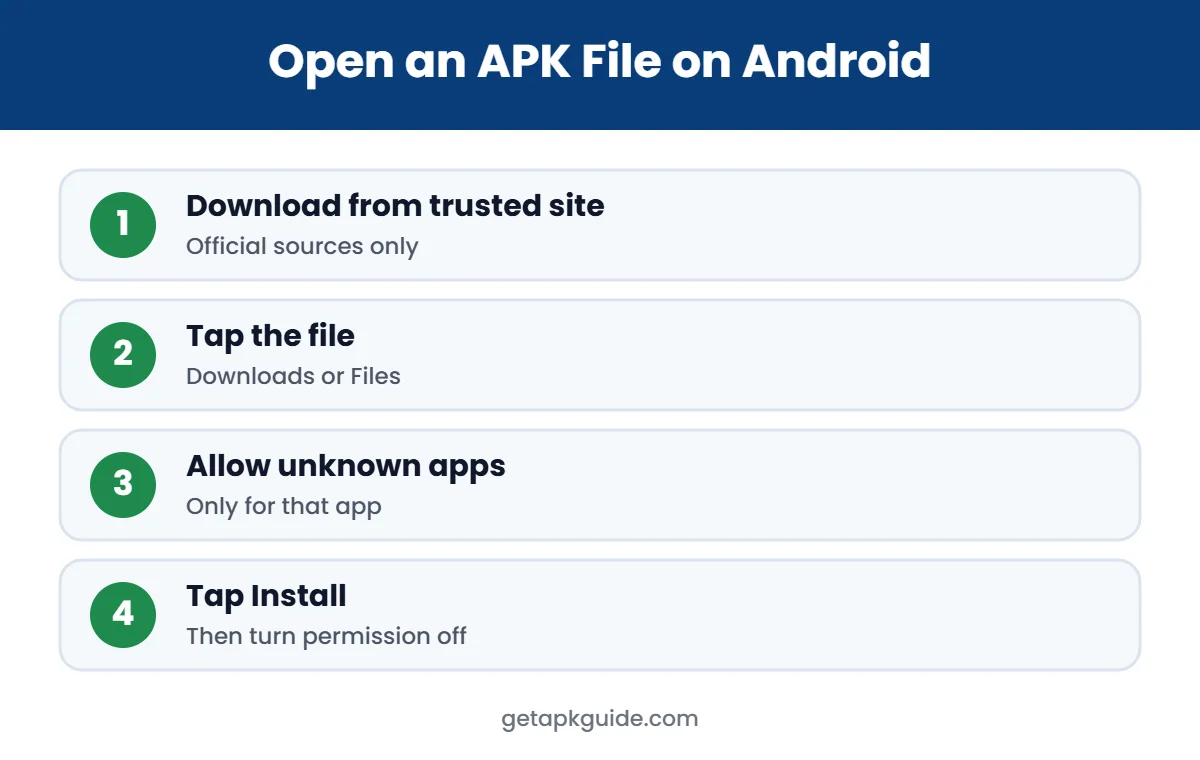
- Download the app from a trusted source.
- Tap the file in your Downloads or file manager.
- If asked, allow “install unknown apps” for that app (see our guide).
- Tap Install and wait for it to finish.
If you see an error, read our fixes for App Not Installed, problem parsing the package and other APK installation errors.
On Windows or Mac
Windows and macOS cannot run an APK file on their own. Microsoft ended support for Windows Subsystem for Android on 5 March 2025 (Thurrott), so the usual options are an Android emulator, such as the one in Android Studio, or a trusted third-party emulator. If you only want to look inside an APK file, you can open it with a ZIP tool like 7-Zip, because an APK is a ZIP archive. For an example, see our guide to using Remini on PC.
On Chromebook
Most Chromebooks run Android apps through the Play Store. To install an APK file that is not on Play, follow our guide to install APK on Chromebook.
On iPhone or iPad
You cannot open or install an APK file on iPhone or iPad. iOS uses a completely different app format (IPA) and only installs apps from approved sources. Any website claiming to install Android apps on iPhone is misleading.
Permissions Explained in Plain Words
Every Android app declares the permissions it wants in its manifest. Android then asks you to allow the sensitive ones, such as camera, location, microphone, contacts and SMS. A few simple rules help:
- A camera app needs the camera, but not your contacts.
- A video player needs storage or media access, but not SMS.
- Accessibility access lets an app read and control your screen, so give it only to apps you fully trust.
- Device admin rights make an app hard to uninstall; legitimate apps rarely need them.
You can review or remove permissions at any time in Settings, Apps, then the app’s Permissions screen.
It is also worth checking storage before you install anything large. Games and video editors can need several gigabytes once their extra data is downloaded, so free up space first to avoid half-finished installs. Restarting the phone after a failed attempt also clears temporary files that sometimes block the next try.
How to Open an APK File to See What Is Inside
- ZIP tool: open the file with 7-Zip or rename it to .zip to browse folders. Most files, like the manifest, are in binary form.
- Android Studio APK Analyzer: shows the manifest, file sizes and permissions in readable form (see the official APK Analyzer guide).
- Online scanners: VirusTotal can scan an app package for known malware, but a clean result is not a guarantee.
Why Is My APK Not Opening?
- Download incomplete: the file size is smaller than expected. Download it again.
- Wrong format: it is actually an XAPK or APKS bundle and needs a split installer.
- Incompatible device: the app needs a newer Android version or a different processor type.
- Blocked by settings: “install unknown apps” is off for the app you are using to open it.
- Signature conflict: an older copy signed by someone else is already installed. Uninstall it first.
After a successful install, you can delete the downloaded package from your Downloads folder. The app keeps working, and you free up storage space.
Is an APK File Safe?
An APK file is just a container, so it can be completely safe or very dangerous depending on who made it. The same app can be safe from the developer’s website and harmful from a fake download site. Before you install, check:
- The source: Google Play, the developer’s official site, or a well-known store.
- The signature: an update should be signed by the same developer as the original app.
- The permissions: be careful if a simple app asks for SMS, contacts or accessibility access.
- The offer: “premium unlocked” or “mod” APK files are modified and often carry malware.
For a step-by-step routine, read how to install APK files safely, and keep Google Play Protect turned on. You can also compare stores in our Uptodown and APKMirror reviews.
The key idea to remember is simple: the format itself is neutral. What decides whether an app is safe is who built it, who signed it and where you got it. If you stick to Google Play, the developer’s own website or a well-known store, and you check permissions after installing, you avoid the vast majority of problems people run into with Android apps.
Quick Glossary for Beginners
- Sideloading: installing an app from outside the official store.
- Package name: the unique ID of an app, such as com.example.app, used by Android to tell apps apart.
- Version code: an internal number Android uses to decide whether a package is newer than the installed one.
- Signing key: the developer’s private key that proves who built the app.
- Split APKs: several smaller packages that together make one app, each for a screen size, language or processor.
- Play Protect: Google’s built-in scanner that checks apps on your device for harmful behaviour.
Knowing these terms makes it much easier to follow install guides and to understand error messages. For example, a “version downgrade” error simply means the version code you are installing is lower than the one already on your phone, and an “app not installed as package conflicts” message usually points to a different signing key.
FAQ: What Is an APK File?
What does APK stand for?
APK stands for Android Package Kit, sometimes just called Android Package.
What is an APK file used for?
It is used to install apps on Android phones, tablets, TVs and Chromebooks.
How do I open an APK file?
On Android, tap the file and allow installs from that source. On PC, use an Android emulator, or open it with a ZIP tool to look inside.
Can an APK file have a virus?
Yes. An APK file from an unofficial or modified source can contain malware. Download only from trusted sources and scan files before installing.
Can I convert an APK file to work on iPhone?
No. iPhone apps use a different format, and an APK file cannot be converted to run on iOS.