How to Install APK on Chromebook (2026): 3 Methods, No Developer Mode

Want to install APK on Chromebook? Most modern Chromebooks can run Android apps, but installing an APK file directly is not as simple as on a phone. This guide shows the three real methods in 2026, which one is safest, and how to install APK on Chromebook without developer mode by using the Linux environment and ADB.
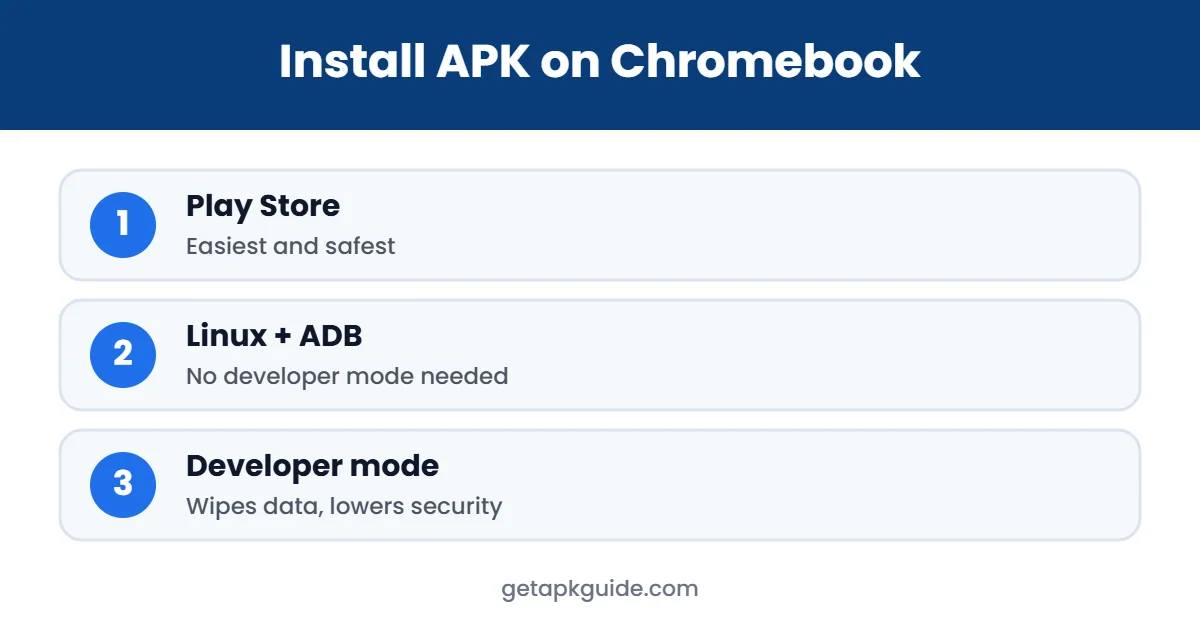
Quick answer: the safest way is the Google Play Store on your Chromebook. If the app is not on Play, you can install an APK through Linux and ADB debugging, which keeps your Chromebook’s security on. Developer mode also works, but it wipes your device and turns off important protections, so we do not recommend it for most people.
Can You Install APK on Chromebook?
Yes, on most Chromebooks that support Android apps. Chromebooks released in recent years run Android apps in a container, and the Google Play Store is built in. To check, open Settings, then Apps, and look for Google Play Store. If it is there, your Chromebook can run Android apps. School or work Chromebooks may block Play Store and sideloading through admin policies, and you cannot change that yourself.
Before You Install APK on Chromebook: Quick Checklist
- Update ChromeOS to the latest version in Settings, About ChromeOS.
- Make sure you have at least a few gigabytes of free storage for Linux and the app.
- Back up important files to Google Drive or a USB drive.
- Confirm the APK comes from the developer’s official website or a trusted store.
- Check whether your Chromebook is personal or managed by a school or company.
These checks take two minutes and prevent most failed installs. They also make sure that if something goes wrong, you do not lose anything important.
Method 1: Use the Google Play Store (Safest)
- Open Settings and go to Apps.
- Turn on Google Play Store and accept the terms.
- Open Play Store from the launcher and search for your app.
- Click Install. The app appears in your launcher like any other app.
This method keeps automatic updates, Google Play Protect scanning and full ChromeOS security. Before searching for an APK, always check whether the app is on Play for Chromebook.
Method 2: Install APK on Chromebook Without Developer Mode (Linux + ADB)
This is the best way to install APK on Chromebook when the app is not on Google Play. It uses the built-in Linux development environment and Android Debug Bridge (ADB), so you do not need developer mode and your Chromebook stays protected.
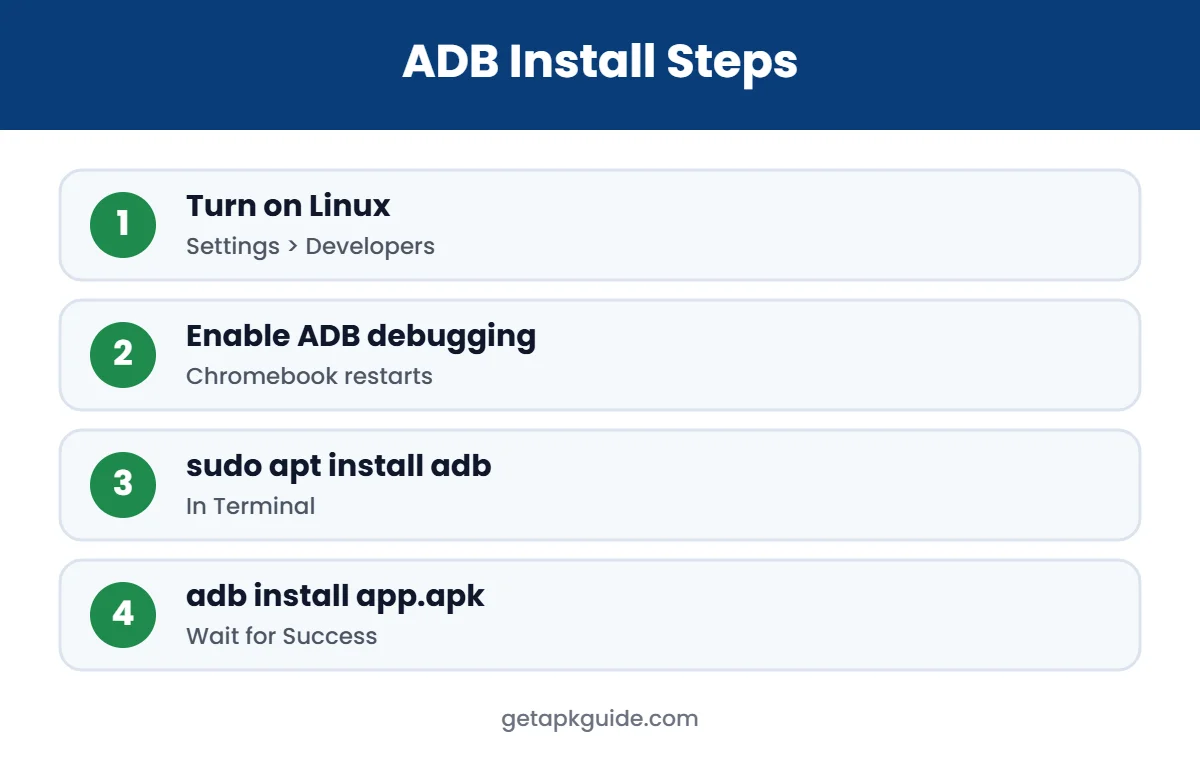
Step 1: Turn on Linux
- Open Settings, then About ChromeOS, then Developers.
- Next to Linux development environment, click Set up and follow the steps.
- Wait for the Terminal app to open.
Step 2: Enable ADB debugging
- In Settings, open the Linux development environment settings (menu names can differ slightly by ChromeOS version).
- Open Develop Android apps and turn on Enable ADB debugging.
- Your Chromebook restarts. After the restart, dismiss the notice about apps not downloaded from the app store.
Since Chrome 81, Google has supported ADB this way without developer mode (Android Developers: ChromeOS sideloading). If the toggle is missing, Google notes you may need to factory-reset the device, so back up first.
Step 3: Install ADB in Linux
Open the Terminal app and run: sudo apt update and then sudo apt install adb.
Step 4: Connect and install the APK
- Move the APK file into the Linux files folder using the Files app.
- In Terminal, run
adb connect arcand allow the USB debugging prompt that appears. - Run
adb install filename.apk(replace with your file name). - When you see “Success”, open the app from the launcher.
If the install fails, check our fixes for App Not Installed and problem parsing the package.
Why Double-Clicking an APK Does Not Work
On a phone, tapping an APK opens the installer. On a Chromebook, the Files app does not offer an install option for APK files in normal mode. That is by design: ChromeOS keeps the Android container locked down so that only Play Store apps, or apps installed through the developer tools, can be added. This protects you from malicious downloads that try to install themselves from a web page. When you install APK on Chromebook with ADB, you are deliberately using a developer tool, which is why Google requires you to switch it on yourself.
Method 3: Developer Mode (Not Recommended)
Developer mode lets you open APK files directly, but it comes with big downsides:
- Turning it on powerwashes your Chromebook and deletes all local files.
- Verified boot is turned off, so ChromeOS can no longer confirm the system is untouched.
- A warning screen appears every time you start the device.
- School and work Chromebooks usually block it.
Because of these risks, use developer mode only if you understand the trade-offs and have backed up everything.
Install APK on Chromebook vs on an Android Phone
On an Android phone, you allow “install unknown apps” for one app, tap the file and you are done. To install APK on Chromebook, there are extra steps because ChromeOS adds more layers of protection. The Android apps run inside a container that is separated from the rest of the system, and ChromeOS checks itself at every start with verified boot. That is why a Chromebook is very hard to infect, and why Google keeps sideloading behind developer tools.
The upside is that once the app is installed, it behaves almost the same as on a phone: it has its own permissions, data and notifications, and you can uninstall it at any time without affecting ChromeOS. For more about the phone side, see our guide to install unknown apps on Android.
Comparison: Ways to Install APK on Chromebook
| Method | Difficulty | Security | Data loss |
|---|---|---|---|
| Google Play Store | Easy | Highest | None |
| Linux + ADB | Medium | High | None |
| Developer mode | Medium | Lower | Full wipe |
Where to Get Safe APK Files
The method you use to install APK on Chromebook does not make a bad file safe. Get APKs only from the developer’s official website or a trusted source, and never install modified or cracked apps. Read how to install APK files safely and our reviews of APKMirror, APKPure and Uptodown before downloading. If a file comes as XAPK or split APKs, see how to install XAPK files.
Common Problems and Fixes
- “adb: device unauthorized”: run the connect command again and accept the prompt on screen.
- “Enable ADB debugging” is missing: your Chromebook may be managed by a school or company, or Linux is not set up yet.
- App installs but will not open: it may need Google Play Services or a phone-only feature such as a SIM.
- App looks stretched: try resizing the window; some phone apps are not built for large screens.
Tips for Running Android Apps Well on Chromebook
- Use the window resize option to switch between phone, tablet and resizable layouts.
- Allow only the permissions an app really needs, in Settings, Apps, Manage your apps.
- Connect a mouse or keyboard; many Android apps support both.
- Close Android apps you are not using to save battery and memory.
- Keep Linux and ADB updated with
sudo apt update && sudo apt upgradeif you use them often.
With the right method and a trustworthy file, Android apps on a Chromebook can feel almost like native apps.
Updating Apps You Install on Chromebook
Apps from the Play Store update automatically. When you install APK on Chromebook with ADB, updates are your job. Download the new version from the same official source and run adb install -r filename.apk, which replaces the old version and keeps your app data. If Android refuses the update with a signature error, the new file was signed by someone else, so do not force it.
To remove a sideloaded app, right-click its icon in the launcher and choose Uninstall, just like any other Android app. You can also turn off ADB debugging again when you no longer need it, which reduces the ways apps can be added to your Chromebook.
In short: start with the Play Store, move to Linux and ADB only when an app is missing, and treat developer mode as a last resort. Whichever route you choose, download the APK from an official source, keep a backup, and remove apps you no longer use. These habits keep your Chromebook fast, clean and secure.
FAQ: Install APK on Chromebook
Can I install APK on Chromebook without developer mode?
Yes. Use the Linux development environment with ADB debugging. It keeps your Chromebook secure and does not wipe your data.
Is it safe to install APK on Chromebook?
The install method is safe, but the file must be trustworthy. Use official sources and avoid modified apps.
Why can’t I open APK files on my Chromebook?
ChromeOS does not open APK files directly unless developer mode is on. Use the Play Store or Linux with ADB instead.
Can I install APK on a school Chromebook?
Usually not. School devices are managed, and administrators normally block sideloading and developer options.
Do I need Linux to install APK on Chromebook?
Only if the app is not on Google Play and you want to avoid developer mode. For Play Store apps, Linux is not needed.