How to Restore Old Photos with Remini (2026 Guide)

Do you have faded family prints, scratched wedding photos or tiny pictures from an old phone? This guide shows how to restore old photos with Remini in 2026: how to scan them properly, which Remini tools to use, how to get natural results instead of “plastic” faces, and what Remini cannot fix. You can restore old photos with Remini on Android, iPhone or the web, and the steps are almost the same on each.
Quick answer: scan or photograph the old print in good, even light, open the official Remini app, choose Enhance, upload the image and save the result. Remini is excellent at sharpening faces in old photos, but it can invent details, so always compare the result with the original and keep both.
Official Remini download (safe and free to install)
- Android: Remini on Google Play
- iPhone / iPad: Remini on the App Store
- PC / browser: remini.ai (official website)
These are the only official sources. Pro features are unlocked inside the official app, often with a free trial.
Can Remini Restore Old Photos?
Yes. Restoring old and damaged pictures is one of Remini’s main features. The official Google Play listing says Remini can repair old, blurry and scratched photos and clear up vintage camera photos. The app is made by Bending Spoons and has more than 500 million downloads on Google Play.
Remini works best on old photos with people in them, because its AI is trained heavily on faces. It sharpens eyes, skin and hair, reduces grain and noise, and increases resolution. Backgrounds, text and objects improve less, and badly torn areas may still need manual retouching.
Step 1: Digitize the Old Photo the Right Way
The quality of your scan decides most of the final result. Before you restore old photos with Remini, get the best possible digital copy:
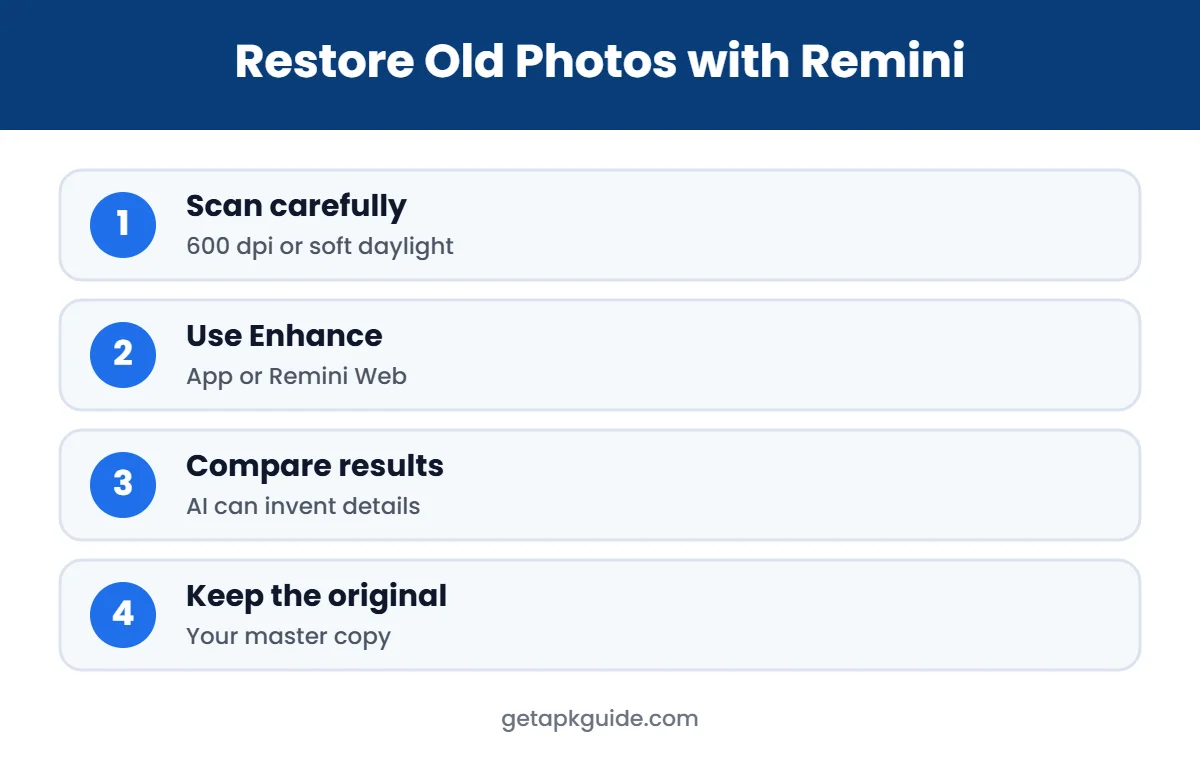
- Use a flatbed scanner if you can. Scan at 600 dpi or more for small prints. A scanner gives even light and no perspective distortion.
- Or use your phone carefully. Place the photo flat near a window with soft daylight, hold the phone directly above it, and avoid flash, which causes glare.
- Avoid reflections. Take glossy prints out of plastic sleeves and frames.
- Crop tightly. Remove the table, album page and borders so the AI focuses on the picture.
- Clean gently. Remove dust from the print and the scanner glass with a soft, dry cloth.
Google’s free PhotoScan app is another good option for capturing prints without glare.
Step 2: Restore Old Photos with Remini (App)

- Install Remini from the official store. Read our Remini APK guide for Android or Remini for iPhone for iOS.
- Open the app and tap Enhance.
- Allow photo access and choose your scanned old photo.
- Wait for processing. Free users may need to watch an ad first.
- Use the before/after slider to compare the restored version with the original.
- Save the result. Keep the original scan too, so you can try again later.
Step 3: Restore Old Photos with Remini Web
On a computer, you can restore old photos with Remini through the browser. This is handy when your scans are already on a PC. See our Remini for PC guide for the full setup. Remini’s help center notes a few limits for the web version (Remini Web Help):
- Supported image formats include JPG, PNG and WEBP.
- The AI processes images up to 2048 x 2048 pixels; larger images are compressed first.
- Private or incognito browser mode and ad blockers can cause errors.
Because of the size limit, very large scans may not gain extra detail. If a scan is huge, crop to the area you care most about, such as the faces.
How to Get Natural Results
A common complaint is that AI makes old portraits look like wax figures. These habits help when you restore old photos with Remini:
- Compare with the original: check eye colour, wrinkles, scars and teeth. AI sometimes “beautifies” faces or changes small details.
- Do not enhance twice: running Remini on an already enhanced image often over-sharpens it.
- Fix colour separately: faded colour and colour casts are better corrected in an editor like Snapseed. See Snapseed vs Lightroom.
- Retouch tears manually: large cracks, missing corners and folds may need a healing or inpainting tool after Remini.
- Crop group photos: enhance each face area separately if some faces are very small.
What Remini Cannot Fix in Old Photos
| Problem | Can Remini fix it? | What to do instead |
|---|---|---|
| Blurry or soft faces | Yes, usually very well | Use Enhance |
| Grain and noise | Mostly | Enhance, then light editing |
| Low resolution | Yes, increases detail | Avoid enhancing twice |
| Faded colours | Partly | Adjust colour in an editor |
| Large tears or missing parts | No | Manual retouching or inpainting |
| Unreadable text or signs | No | AI cannot recover lost text |
Remember that the AI does not “know” what the person really looked like. When a face is extremely blurred, Remini creates a believable face, which may not be accurate. For important family records, keep the untouched scan as the master copy.
Restoring Different Kinds of Old Photos
Black-and-white portraits
These usually give the best results. Remini sharpens eyes, hair and clothing texture. Keep the image in black and white if you want an authentic look, and only add colour later if you are happy with the sharpened version.
Faded colour prints from the 1970s to 1990s
Colour prints often turn orange or magenta over time. Restore old photos with Remini first to recover detail, then fix the colour cast with white balance or “auto colour” in a photo editor.
Group and wedding photos
Faces in group photos are small. Scan at a higher resolution, crop sections with a few people at a time, enhance each section, and compare carefully. Very small faces can look slightly different after AI processing.
Photos from early digital cameras and phones
Old digital files are often tiny and full of compression blocks. Remini increases resolution well here. If the photo is blurry rather than old, see our guide to fix blurry photos with Remini.
Organise and Back Up Your Restored Photos
- Name files clearly, for example 1985-grandparents-wedding-restored.jpg.
- Keep the original scan and the restored version in separate folders.
- Back up both to cloud storage and an external drive.
- Share restored photos with family, and ask older relatives to help add names and dates.
Free vs Pro for Old Photo Restoration
The free version of Remini lets you restore old photos with Remini, but with ads, daily limits and, in some cases, a watermark. Remini Pro removes many limits and is sold as a weekly or yearly subscription in the app; prices vary by country. If you have a big box of family photos, a short subscription can be cheaper than paying per photo elsewhere. Read our Remini Pro guide for plan details and how to cancel. Avoid “unlocked” Remini Mod APK files, which are unofficial and risky.
Privacy: Think Before Uploading Family Photos
Remini processes images on its servers, so your old photos are uploaded. That is normal for AI apps, but family photos can include children and people who cannot give consent. Read the privacy policy linked from the app store listing, delete images you no longer need, and avoid uploading sensitive documents. Our Remini baby filter guide covers Remini privacy in more detail.
Other Apps to Restore Old Photos
If Remini’s limits or results do not suit you, compare our Remini alternatives and best photo editor apps. Some tools are better at colourisation or scratch removal, while Remini remains strong at faces.
FAQ: Restore Old Photos with Remini
Is Remini good for old photos?
Yes, especially for faces. It sharpens, reduces grain and increases resolution. It is weaker at large damage, text and colour correction.
Can I restore old photos with Remini for free?
Yes, with ads and daily limits. Remini Pro removes many limits for a weekly or yearly fee.
Why does my restored photo look fake?
The original was probably very blurry, so the AI invented detail, or the image was enhanced twice. Start from a better scan and enhance only once.
Can Remini colourise black-and-white photos?
Features change between versions. Check the current app for colour tools; otherwise use a dedicated colourisation app after enhancing.
Does Remini keep my old photos?
Photos are processed on Remini’s servers. Read the current privacy policy and delete content you do not want stored.