How to Check if an APK Is Safe: 7 Easy Steps (2026)
Before you install any file from outside Google Play, it is worth taking five minutes to check if an APK is safe. Fake download sites, modified “premium unlocked” apps and repackaged games are some of the most common ways Android malware spreads. This 2026 guide shows a simple 7-step method anyone can follow to check if an APK is safe, from the download source to the developer signature, permissions and antivirus scans.
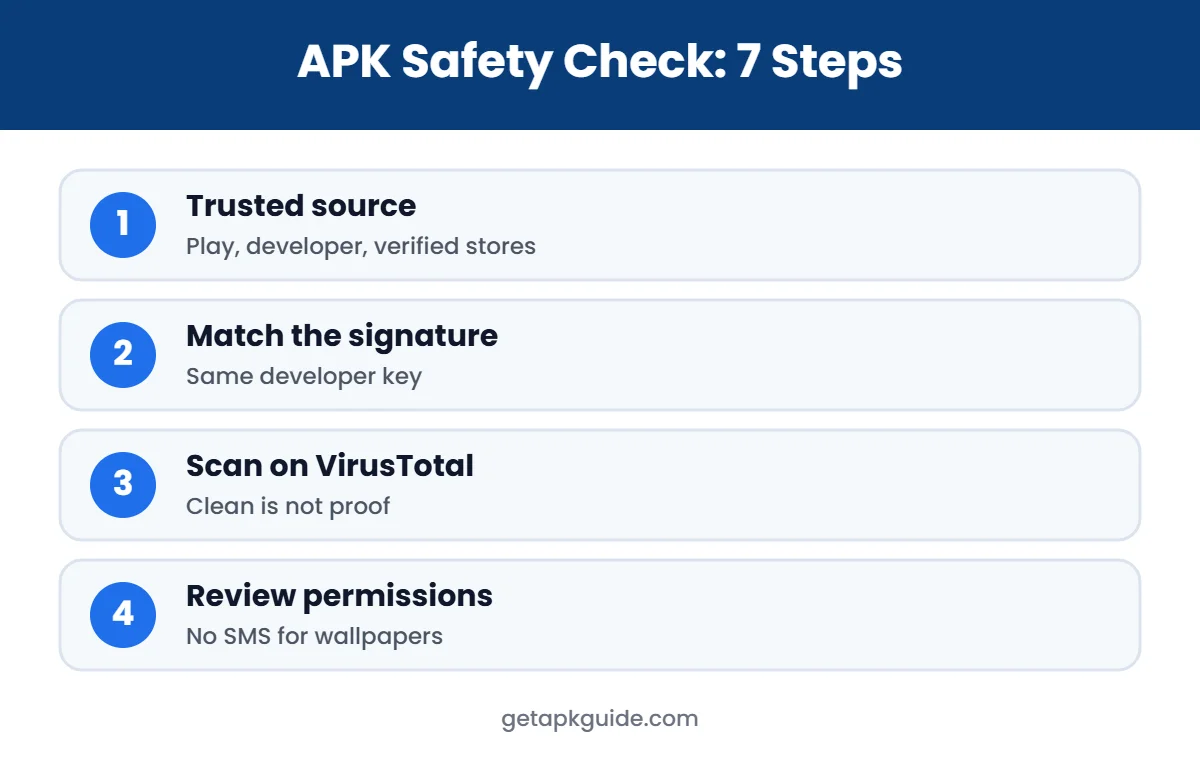
Short answer: you can never prove an APK is 100% safe, but you can remove most of the risk. Download only from the developer or a trusted store, confirm the signature matches the original developer, scan the file on VirusTotal, review the permissions, and let Google Play Protect check it after installing.
Why You Should Check if an APK Is Safe
An APK is simply the package Android uses to install an app (see what is an APK file). Anyone can rebuild an APK, add hidden code and sign it again with their own key. The app may look and work exactly like the original while it shows extra ads, steals login details or subscribes you to paid services. Apps from Google Play go through Google’s checks; files from websites do not, so the checking job moves to you.
Step 1: Check Where the APK Comes From
The source matters more than anything else. In order of safety:
- Google Play or the official app store for your device.
- The developer’s own website or GitHub releases page.
- Curated stores that verify signatures, such as APKMirror and F-Droid. Read our reviews: Is APKMirror safe? and Is F-Droid safe?.
- Large general stores such as Uptodown, with their own scans. See Is Uptodown safe?.
- Mod APK sites offering “premium unlocked” apps. These are the highest risk, because the files are modified by definition.
Always type the address yourself. Search ads and look-alike domains often copy the name of a popular site.
Step 2: Compare the Developer Signature
Every Android app is signed by its developer. If someone modifies the app, they must sign it with a different key. That makes the signature the most reliable way to check if an APK is safe and genuine:
- APKMirror verifies that new versions match the original developer’s signature before publishing.
- Uptodown shows the app’s SHA256 signature in its technical information section.
- On a computer, Google’s apksigner tool can print the signing certificate with
apksigner verify --print-certs app.apk. - If you already have the app from Google Play, Android will refuse to install an update signed with a different key. A “package conflicts with an existing package” error is often a warning sign, not just a bug.
Step 3: Scan the File on VirusTotal
Upload the APK to VirusTotal, or search its SHA-256 hash if it has already been scanned. VirusTotal runs the file through dozens of antivirus engines at once. How to read the result:
| Result | What it usually means | What to do |
|---|---|---|
| 0 detections | No known threats found | Continue with steps 4 to 7 |
| 1 to 2 generic detections | Possible false positive or adware | Check which engines and the detection names |
| Several named detections (Trojan, Spyware, SMS) | Likely malicious | Do not install |
| Detections called “Riskware” or “Hacktool” | Modified or cracking tool | Avoid for any app that uses accounts |
A clean scan does not prove a file is safe. New or targeted malware may not be detected yet, which is why the source and signature checks come first.
Step 4: Review the Permissions
Look at the permissions the app requests before and after installing (Settings > Apps > the app > Permissions). Be suspicious when permissions do not match the app’s purpose:
- A wallpaper, flashlight or photo editor asking for SMS or call logs.
- Any app asking for Accessibility access without a clear reason. Accessibility can read the screen and tap on your behalf.
- Requests to become a device administrator.
- Apps that ask you to turn off Google Play Protect.
Step 5: Let Google Play Protect Scan It
Keep Google Play Protect turned on. It can scan apps installed from outside Google Play and warn you about harmful ones. You can also run a manual scan from the Play Store: tap your profile icon, choose Play Protect and tap Scan (Google Play Help). Never disable Play Protect just because a download page tells you to.
Step 6: Check Reviews and Reputation Carefully
- Search the site name with “safe”, “scam” or “reddit” to find real user experiences.
- Website reputation scanners (such as MalwareTips or ScamAdviser) can show detections and domain age.
- Be careful with star ratings on download pages; they are easy to fake.
- Treat reviews as a signal, not proof. Our own reviews, such as Is HappyMod safe? and Is Modyolo safe?, explain the evidence we used.
Step 7: Install Safely and Watch for Warning Signs
- Allow installs only for the app you are using right now, then turn it off again (see install unknown apps).
- Do not sign in with your main Google, Facebook or bank accounts in modified apps.
- Watch for battery drain, pop-up ads outside the app, new unknown apps or unusual data use after installing.
- If something looks wrong, uninstall the app, run a Play Protect scan and change important passwords.
Red Flags: When Not to Install an APK
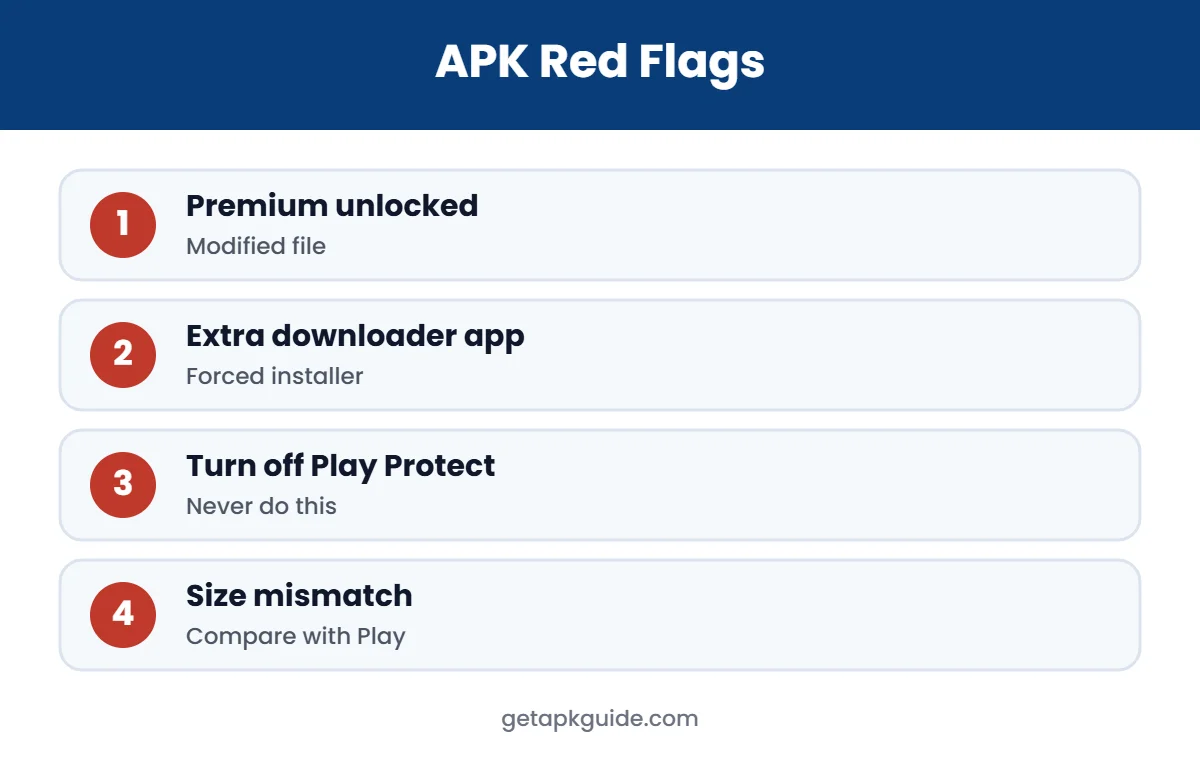
- The file is offered as “premium unlocked”, “unlimited coins” or “cracked”.
- The page forces you to install a separate “downloader” app first.
- The download is an .exe or .zip for an Android app.
- The site shows fake virus warnings or countdown pressure.
- The APK size is very different from the version on Google Play.
For more help, read how to install APK files safely and our guide to APK installation errors.
Free Tools to Check if an APK Is Safe
| Tool | What it checks | Where |
|---|---|---|
| VirusTotal | Antivirus engines and file reputation | Website (upload file or search hash) |
| apksigner | Developer signing certificate | Android SDK build tools on a computer |
| Google Play Protect | Known harmful app behaviour | Built into Google Play on your phone |
| App permissions screen | What the app can access | Settings > Apps on your phone |
| Store technical info | SHA256 signature, permissions | APKMirror and Uptodown app pages |
No single tool is enough. To check if an APK is safe, combine at least three: a trusted source, a signature check and a scan. Our reviews of stores and mod sites, such as Is LiteAPKs safe? and Is AN1 safe?, show how we apply this method to real websites.
Example: Checking an APK Step by Step
- You find an APK for a photo editor on a website.
- You check the site and find it is a mod site offering “premium unlocked”. Red flag.
- You compare the signature: it does not match the version on APKMirror. The file was re-signed.
- VirusTotal shows two “Riskware” detections.
- Decision: do not install. Use the official free version from Google Play instead.
This simple routine takes a few minutes and is the best way to check if an APK is safe before it reaches your phone.
Common Mistakes When People Check if an APK Is Safe
- Trusting the star rating on the download page. Ratings on APK sites are easy to fake. Check independent sources instead.
- Relying on one antivirus app. A single scanner can miss threats. VirusTotal combines many engines, and you still need the source and signature checks.
- Skipping the signature step for “famous” apps. Popular apps are the most copied, so the signature check matters most for them.
- Granting every permission to make the app work. If an app stops working without SMS or Accessibility access, that is a reason to uninstall it.
- Checking once and forgetting. Each new version of a file needs the same checks again.
Avoiding these mistakes is the difference between a quick glance and a real check. If you want to check if an APK is safe in under five minutes, focus on three things: where it came from, who signed it, and what VirusTotal says. Then let Play Protect watch the app after installing. This routine helps you check if an APK is safe on any Android phone, tablet or TV.
How to Check if an APK Is Safe on Android TV, Chromebook and PC
The same seven steps work on every device, but the tools change slightly:
- Android TV and Firestick: it is hard to inspect files on a TV. Check if an APK is safe on your phone or computer first, then send it to the TV. See install APK on Android TV and install APK on Firestick.
- Chromebook: use the Linux terminal to run apksigner, and keep Play Protect on for the Android container. See install APK on Chromebook.
- Windows or Mac: scan the file on VirusTotal in your browser and use apksigner from the Android SDK to read the certificate.
Whatever the device, never skip the source and signature checks. They are the fastest way to check if an APK is safe, and they catch most fake or modified files before you install them.
How long does it take to check if an APK is safe?
Usually three to five minutes: one minute for the source, one for the signature, one for VirusTotal and a quick look at permissions.
Can I check if an APK is safe on my phone only?
Yes. Use your browser for VirusTotal, the store’s technical information page for the signature, and Settings for permissions.
FAQ: How to Check if an APK Is Safe
Can I check if an APK is safe without installing it?
Yes. Check the source and signature, then scan the file on VirusTotal before you install it.
Is VirusTotal enough to know an APK is safe?
No. It only finds known threats. Combine it with a trusted source and a signature check.
Are mod APKs ever safe?
You cannot fully verify them, because they are re-signed by someone other than the developer. We do not recommend them, especially for apps with accounts or payments.
What should I do if I installed a malicious APK?
Uninstall it, run Play Protect, remove any unknown device admin apps, and change passwords from a different, clean device.