APKS File: What It Is & How to Install It on Android (2026)
Downloaded an app and got a file ending in .apks instead of .apk? Tapping an APKS file on Android usually does nothing, or shows “There was a problem parsing the package”. This guide explains what an APKS file is, how it differs from APK, XAPK and APKM, how to install one on Android with an installer app or with Google’s bundletool, and how to check that it is safe before you install it.
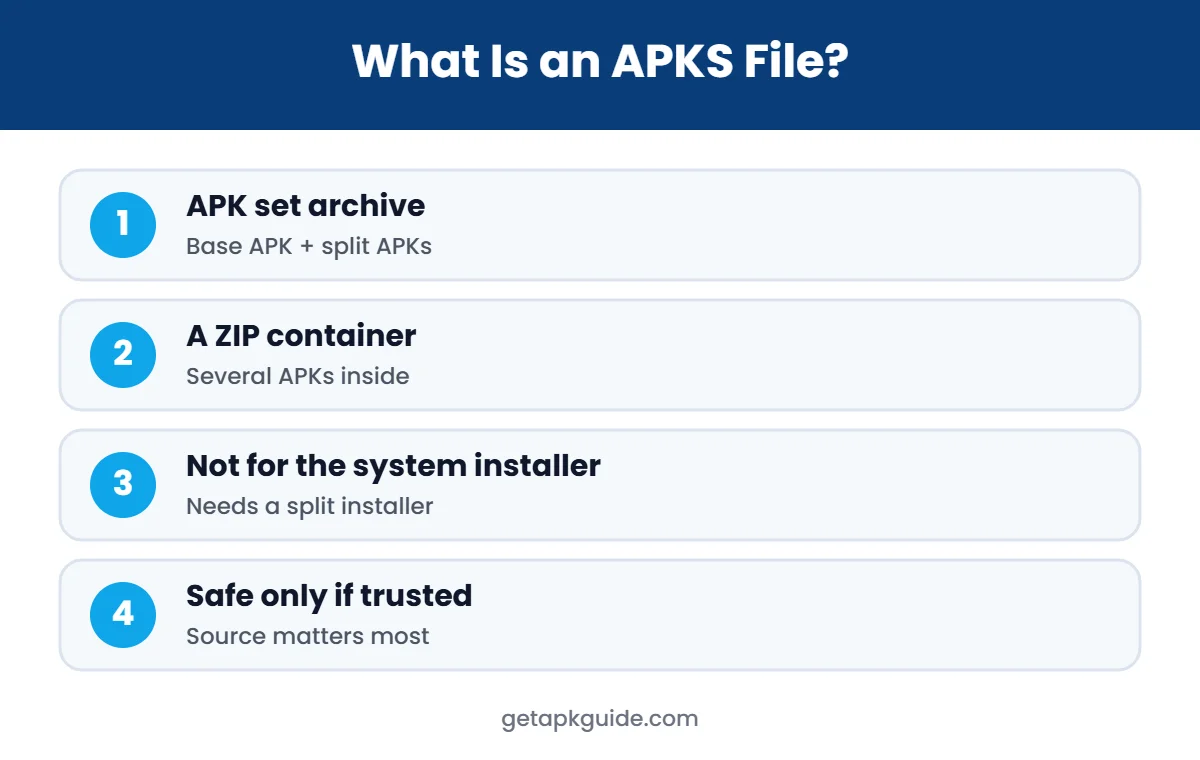
Quick answer: an APKS file is an “APK set” archive. It holds several APK files (a base APK plus split APKs for your screen size, language and processor) packed together. Android’s built-in package installer cannot open this format directly, so you need a split APK installer app or the official bundletool command install-apks.
What Is an APKS File?
Modern Android apps are published to Google Play as Android App Bundles (AAB). Google Play then creates small, device-specific split APKs from that bundle. When those split APKs are bundled into one file for sharing or testing, the result is a single .apks archive.
Google’s official tool for this, bundletool, describes the format as an APK set archive: when bundletool generates APKs from an app bundle, it puts them in a container called an APK set archive with the .apks extension (Android Developers). Backup and installer apps also use this format so the base APK and all of its splits stay together.
Inside, the archive is a normal ZIP file. If you rename a copy to .zip and open it, you will see several APK files (for example base.apk and split_config.arm64_v8a.apk) and sometimes a table-of-contents file. See APK vs AAB for the background on app bundles.
APKS File vs APK, XAPK and APKM
| Format | What it contains | How to install |
|---|---|---|
| APK | One complete installer | Tap it (after allowing unknown apps) |
| APKS file | Base APK + split APKs (APK set) | Split APK installer or bundletool |
| XAPK | APK + splits or OBB game data | XAPK-compatible installer |
| APKM | Split APKs, APKMirror format | APKMirror Installer app |
| AAB | Developer bundle, not installable | Converted to APKs by Play or bundletool |
The three split formats solve the same problem: one app, many files. For XAPK steps, read how to install XAPK files. For a basic primer, see what is an APK file.
Why Your Phone Cannot Open an APKS File
The standard Android package installer is built to install one APK at a time. An APKS file contains several APKs that must be installed together in one session, so the system installer either ignores the file or shows an error. Common messages include:
- “There was a problem parsing the package” (see how to fix it)
- “App not installed” (see App not installed fixes)
- “No app found to open this file”
These errors do not mean the file is broken. They mean you need the right installer.
How to Install an APKS File on Android (Installer App)
The easiest way for most people is a split APK installer app. A well-known open-source option is SAI (Split APKs Installer). Several APK store apps can also install their own split formats. The general steps are:
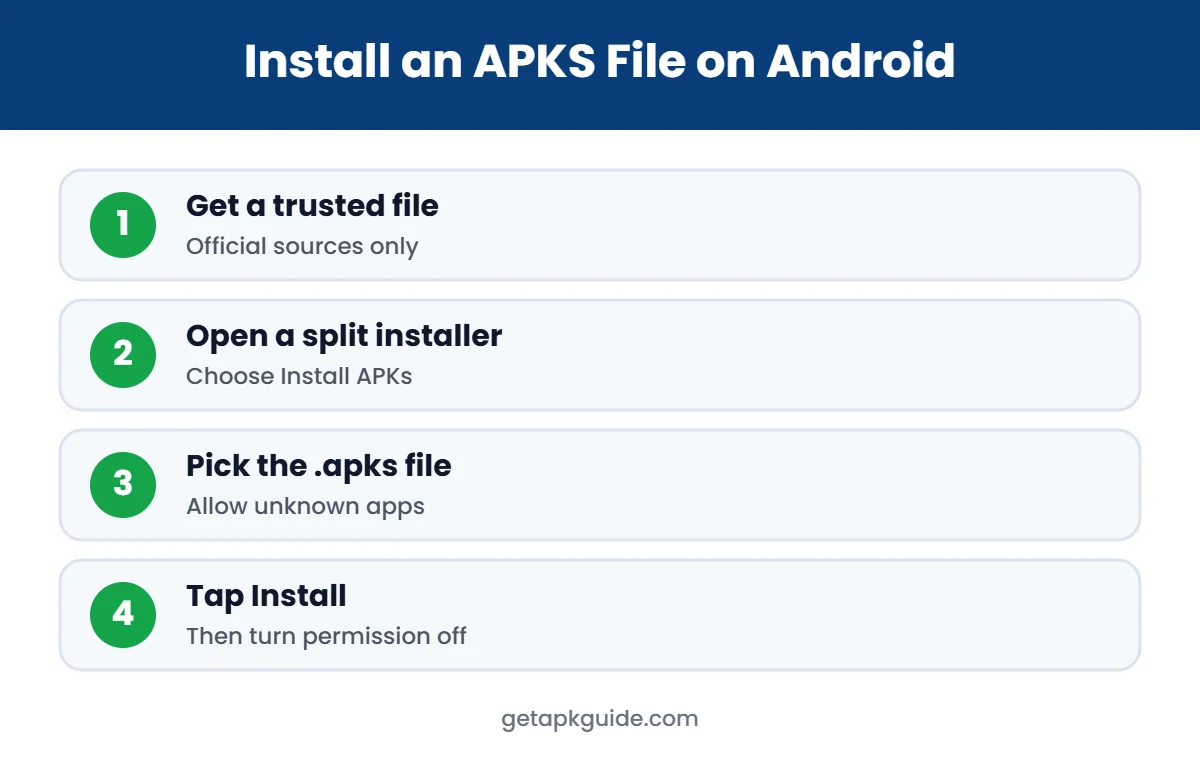
- Download the archive only from the developer or a trusted store.
- Install a reputable split APK installer from Google Play or the developer’s official page.
- Open the installer and choose Install APKs or a similar option.
- Select your .apks file in the file picker.
- When Android asks, allow the installer to install unknown apps (Settings > Apps > Special app access > Install unknown apps).
- Tap Install and wait for the confirmation.
- Turn the “Install unknown apps” permission off again for the installer.
Our install unknown apps guide shows where this setting is on Samsung, Pixel, Xiaomi and other phones, and APK installer apps compares installer options.
How to Install an APKS File with Bundletool (PC)
Developers and advanced users can install the archive from a computer with Google’s bundletool. You need Java, bundletool, USB debugging enabled on the phone, and the phone connected to the computer. The official command is:
bundletool install-apks --apks=/path/to/app.apksBundletool installs only the splits your connected device needs. If more than one device is connected, add --device-id=serial-id. Developers create the archive from an AAB with bundletool build-apks --bundle=app.aab --output=app.apks; without signing flags, bundletool signs it with a debug key, which is fine for testing but not for publishing.
Alternative: adb install-multiple
You can also unzip the archive and install the APK files together with adb install-multiple base.apk split1.apk split2.apk. All splits must come from the same app version and be signed with the same key, or the install will fail.
How to Open an APKS File on Windows, Mac or Chromebook
- Windows / Mac: rename a copy to .zip and open it with any archive tool to see the APK files inside. To run the app, install it on an Android device or emulator.
- Chromebook: if Android apps are enabled, use a split APK installer from Google Play, or follow our install APK on Chromebook guide.
- iPhone: iOS cannot install APKS files or any Android format.
Is an APKS File Safe?
An APKS file is just a container. It is as safe as the source it came from. Because it holds several APKs, a tampered set can hide a modified split that you never see. Before installing:
- Prefer Google Play or the developer’s official site over random download pages.
- Avoid “mod” or “premium unlocked” files; these are modified and re-signed by unknown people.
- Check that every APK inside has the same signature, and that an update matches the app already on your phone.
- Scan the file and keep Google Play Protect turned on.
- Review the permissions the app requests after installing.
Our step-by-step how to check if an APK is safe guide works for every APK inside the archive too.
Common APKS File Errors and Fixes
| Error | Likely cause | Fix |
|---|---|---|
| App not installed | Signature conflict with installed app | Uninstall the old version first (back up data) |
| INSTALL_FAILED_MISSING_SPLIT | A required split is missing | Re-download the complete set |
| Incompatible with device | Wrong CPU or Android version splits | Get the version built for your device |
| Parse error | Opened with the system installer | Use a split APK installer or bundletool |
| Install blocked | Unknown apps not allowed | Allow it for the installer, then turn it off |
Still stuck? Our APK installation errors and APK not installing on Android 14 guides cover newer Android restrictions.
Where Do APKS Files Come From?
You will usually meet this format in one of three situations. First, app developers create it with bundletool to test how their app bundle installs on different phones before publishing to Google Play. Second, backup tools and split APK installers export installed apps in this format, so you can move an app to another phone without losing any of its splits. Third, some download websites repackage apps from Google Play into .apks archives so that one download contains everything needed.
The first two cases are normal and low risk when you control the files. The third case is where problems start: you cannot easily see who rebuilt the archive or whether a split inside was changed. If the app is free on Google Play, installing it from Google Play is always the safer choice, and it also gives you automatic updates.
APKS File Tips Before You Install
- Check free storage first. An APK set can be much larger after installing than the download size.
- Match the Android version. Splits built for newer Android versions will not install on older phones.
- Keep the archive together. Do not delete or rename the APK files inside the archive.
- Back up app data before replacing an existing app, because a signature conflict means you must uninstall first.
Real-World Example: Moving an App to a New Phone
Imagine you have an older app that is no longer listed on Google Play, but it still works on your old phone. A split APK installer or backup tool can export it as one .apks archive. You copy that archive to the new phone with a USB cable or cloud storage, open the same installer there, and install it in one step. Because you made the backup yourself from an app you already trusted, this is one of the safest ways to use the format.
The same process will not work for apps that rely on Google Play licensing or online accounts that check the install source. In that case, sign in on the new phone and install the app from Google Play instead.
- Export from the old phone with your installer or backup app.
- Copy the archive to the new phone.
- Install with the same installer and allow unknown apps only for it.
- Open the app and sign in again if needed.
FAQ: APKS File
What is an APKS file?
An APKS file is an APK set archive that bundles a base APK and its split APKs into one ZIP file.
Can I convert an APKS file to a single APK?
Not reliably. Developers can build a universal APK from the original AAB with bundletool, but merging split APKs from the archive usually breaks the signature.
Why does my APKS file say “problem parsing the package”?
Because the normal Android installer cannot read this format. Use a split APK installer app or bundletool.
Is APKS the same as XAPK?
They are similar containers for split APKs, but they come from different tools and need a compatible installer.
Do I need root to install an APKS file?
No. Split APK installer apps and bundletool work on normal, unrooted Android phones.